
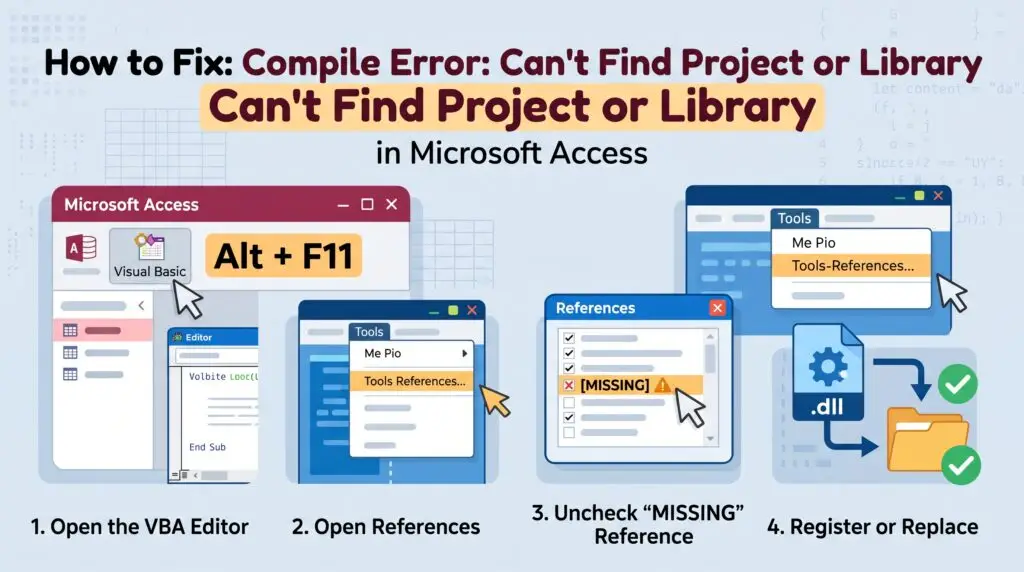
Short answer: This error means your database’s VBA code references a library that isn’t on this computer, usually after moving to a new PC or Office version. Open the VBA editor (Alt+F11), go to Tools > References, uncheck the reference marked MISSING, then choose Debug > Compile. Your code itself is usually fine.
Reviewed by Anthony Passeri, MBA, certified Microsoft Access Expert with 21+ years of Access development.
What the Error Looks Like
You open the database or click a button, and Access stops with:
Compile error: Can’t find project or library
The VBA editor opens and highlights a line of code, often something simple like Left, Mid, Trim, Date or Format. You may also see a message that the database “contains a missing or broken reference.”
Why It Blames Left, Date or Format
Those built-in functions aren’t the problem. VBA compiles the whole project at once, so when one reference is broken, it can’t resolve anything, and it simply stops at the first function it tries to look up. Fix the missing reference and the “broken” function works again.
Common Causes
- The database moved to a computer with a different Office version. References to a specific version (like the Excel, Word or Outlook 16.0 Object Library) break if that version isn’t installed.
- A switch between 32-bit and 64-bit Office. Some libraries and controls only exist in one. See Code Must Be Updated for 64-Bit Systems.
- A third-party control or DLL isn’t installed (or registered) on this PC: a PDF tool, a calendar control or a custom add-in.
- An Office repair or update changed a library.
How to Fix It
- Make a copy of the database and work on the copy.
- Open the VBA editor: press Alt+F11, or go to Database Tools > Visual Basic. If code is running or paused, choose Run > Reset first, or the References menu will be greyed out.
- Open the references list: go to Tools > References.
- Find the broken one. It’s labeled MISSING: followed by its name, usually near the top of the checked list.
- Fix it:
- If the code doesn’t need it, uncheck it.
- If the code needs it, uncheck it, then scroll down and check the version that is installed on this PC, or choose Browse to locate the file.
- Compile: choose Debug > Compile, fix anything it flags, then save and test.
Microsoft documents these steps in its “Can’t find project or library” troubleshooting article.
If Users Have Access Runtime
Users with the free Access Runtime can’t open the VBA editor to fix references. Fix the reference on a computer with full Access, then give users a fresh copy of the front end. If the reference is to software missing on their PCs, install it there, or remove the dependency (see late binding below).
How to Stop It Coming Back
Keep References to a Minimum
Most Access databases only need four:
- Visual Basic For Applications
- Microsoft Access xx.0 Object Library
- OLE Automation
- Microsoft Office xx.0 Access database engine Object Library
Every extra reference is another thing that can go missing on the next computer.
Use Late Binding for Excel, Outlook and Word
If your code automates other Office apps, late binding removes the version-specific reference entirely, so the code works with whatever version is installed:
' Early binding: needs a reference to a specific Excel version
Dim xl As Excel.Application
Set xl = New Excel.Application

' Late binding: no reference needed
Dim xl As Object
Set xl = CreateObject("Excel.Application")
The trade-off: you lose IntelliSense while writing code, and named constants like xlUp must be replaced with their numeric values or declared yourself.
Standardize Office Across PCs
The same Office version and bitness on every computer prevents most reference problems. Microsoft explains the differences in Choose between the 64-bit or 32-bit version of Office. If you’re mid-upgrade, see Is Microsoft Access Still Supported?
Split the Database and Distribute Front Ends
With a split database, you fix references once in the master front end and hand everyone a new copy. Splitting is covered in Getting Started with Microsoft Access.
Related Errors
- Code won’t run at all, with a security warning: Macros Blocked or Active Content Disabled
- Linked tables fail on a new PC (often a missing ODBC driver): ODBC Call Failed
When to Get Help
If the missing reference belongs to a control or tool nobody remembers installing, or removing it breaks other code, our VBA debugging and enhancement service can convert it to late binding or replace the dependency. Inherited a database nobody understands? Our legacy system documentation maps what the code does. For ongoing help, see maintenance and support.
Still getting compile errors? Book a free diagnostic and we’ll track down the missing reference.
Frequently Asked Questions
How do I fix “Can’t find project or library” in Access?
Open the VBA editor with Alt+F11, go to Tools > References, uncheck the reference marked MISSING (or select the installed version instead), then choose Debug > Compile.
Why does the error highlight Left, Date or Format?
Because one missing reference stops the whole project from compiling. VBA stops at the first function it tries to look up. Fixing the missing reference fixes the function.
Why is Tools > References greyed out?
Code is still running or paused. In the VBA editor, choose Run > Reset, then open Tools > References again.
How do I prevent missing references in Access?
Keep references to the essentials, use late binding for Excel, Outlook and Word automation, standardize Office versions across computers, and distribute a fresh front end after fixes.
Talk to an Access Expert
Not sure what this means for your database? Book a free diagnostic call. No sales pitch, just a straight conversation about what makes sense for your situation.
Phone: 623-267-5720
Email: info@accessevolved.com
Access Evolved | 19580 W Indian School Rd, Ste 105 #815, Buckeye, AZ 85396
Sources
- Microsoft Learn: “Can’t find project or library” error when you compile a module or run a procedure in Access
- Microsoft Support: Choose between the 64-bit or 32-bit version of Office
The late binding guidance and the built-in function symptom reflect standard VBA practice and Access Evolved’s own experience.