
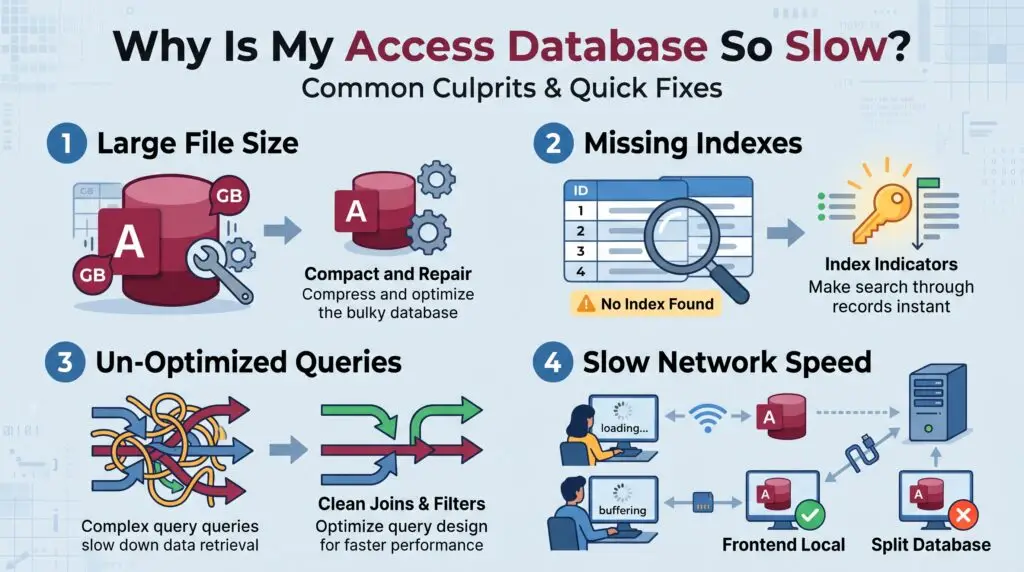
Short answer: Most slow Access databases have one of four problems: a slow network connection (especially VPN or Wi-Fi), a database that isn’t split, a bloated file that needs compacting, or forms and queries that pull far more data than they need. Fix those first. If the file is nearing 2 GB or many people use it at once, it may have outgrown Access.
Reviewed by Anthony Passeri, MBA, certified Microsoft Access Expert with 21+ years of Access development.
Quick Diagnosis: Where Is It Slow?
| If it’s slow… | Look first at |
|---|---|
| For everyone, all the time | File bloat, missing indexes, or the file nearing 2 GB |
| Only for remote users or on VPN | The network: Access over VPN is inherently slow |
| Only for some people | Their connection (Wi-Fi?), their computer, or a shared front end |
| Only when several people are in it | An unsplit database, locking or too many users |
| Only on certain forms or reports | Form and query design |
| Only with linked SQL Server tables | Queries that can’t run on the server |
Why Access Gets Slow Over a Network
Access doesn’t work like a server database. Each user’s computer does the processing, so Access pulls data across the network to filter and sort it. On a fast wired office network that’s fine. Over VPN or Wi-Fi, the same work can take many times longer, and dropped connections risk corruption.
Network and Setup Causes
1. Using Access Over VPN or Wi-Fi
This is the most common cause of complaints. Fixes, from quickest to best:
- Remote Desktop: remote users connect to a computer or server in the office and run Access there, so only screen images cross the VPN, not data. Fast and reliable.
- Move the tables to SQL Server: the server does the filtering and sends only the results. See Access to SQL Server migration.
- Rebuild in Power Apps for true browser and phone access. See Access to Power Platform migration.
If the connection also drops, see Your Network Access Was Interrupted.
2. The Database Isn’t Split
If everyone opens one file on the server, Access sends forms, reports and code across the network along with the data. Microsoft notes that splitting usually improves performance significantly, because only data crosses the network. Split the database and give each user their own front end on their computer.
3. A Shared Front End on the Network
Even in a split database, running the front end from the server slows everyone down. Each user should run a local copy.
4. The File Is in OneDrive, Dropbox or SharePoint
Sync tools fight with Access over the file, causing slowness and corruption. Microsoft recommends against opening Access files from those locations. Use a regular network share.
5. Antivirus Scanning Access Files
Real-time scanning of .accdb and .laccdb files on every read and write can slow Access noticeably. Ask IT whether excluding the database folder from real-time scanning is acceptable under your security policy.
File Health Causes
6. Bloat From Never Compacting
Access files grow as data is edited and deleted, and the wasted space slows things down. Run Compact and Repair regularly, with everyone out of the file: File > Info > Compact & Repair Database. See Microsoft’s compact and repair guide. Compact the back end monthly (weekly for busy databases) and replace front ends with fresh copies.
7. Nearing the 2 GB Limit
Access databases have a hard 2 GB size limit, and performance and stability decline as you approach it. Short-term fixes: compact, archive old records to a separate database, and store documents and images as files on the server rather than inside the database. Long-term: move the tables to SQL Server, where SQL Server Express alone handles up to 10 GB for free.
Design Causes
8. Missing Indexes
Searching and sorting on fields without indexes forces Access to read every record. Index the fields you filter, sort and join on, such as foreign keys, dates and status fields. See Designing Access Tables and Relationships.
9. Forms That Load Whole Tables
A form bound to a 200,000-record table loads far more than anyone needs. Open forms filtered to what the user is working on, such as one customer or this month’s orders. Also watch for combo boxes with huge lists, many subforms on one screen, and calculated controls using DLookup or DSum, which run a separate query for every record.
10. Slow Queries
Queries slow down with functions on indexed fields, criteria on calculated columns, and nested queries stacked several levels deep. See Creating Access Queries and Reports for faster query habits. With linked SQL Server tables, queries that use Access-only functions may pull entire tables across the network; move that work into SQL Server views. If they time out, see ODBC Call Failed.
11. Settings That Quietly Slow Things Down
Three classic speed-ups many databases never apply:
- Set Subdatasheet Name to [None] on each table (Table Design > Property Sheet).
- Turn off Name AutoCorrect: File > Options > Current Database, then clear the Track name AutoCorrect info option.
- Keep a persistent connection to the back end, such as a hidden form bound to a small back-end table opened at startup, so Access doesn’t repeatedly reopen the back-end file.
Outgrowing Access
12. Too Many Users or Too Much Data
In our experience, a shared Access file gets slow and fragile beyond about 10 to 15 people working at once, or as it approaches 2 GB. At that point tuning helps less, and the real fix is moving the data to SQL Server, keeping your Access screens, or rebuilding in Power Apps. See Power Apps vs SQL Server vs Staying in Access. Frequent locking errors are another sign; see File Already in Use and Record Locking Errors.
A slow, overloaded database is also more likely to corrupt; see How to Keep Your Access Database Safe From Corruption.
When to Get Help
Our maintenance and support service includes a performance review covering all twelve causes. If slow forms or code are the issue, see VBA debugging and enhancement.
Database crawling? Book a free diagnostic and we’ll pinpoint what’s slowing it down.
Frequently Asked Questions
Why is my Access database so slow?
The most common causes are a slow network connection like VPN or Wi-Fi, a database that isn’t split, a bloated file that needs compacting, missing indexes, and forms that load entire tables.
How do I speed up an Access database?
Split the database and give each user a local front end, compact regularly, index the fields you search on, open forms filtered to the records needed, and avoid running Access over VPN.
Why is Access so slow over VPN?
Access processes data on each user’s computer, so it pulls data across the connection. Use Remote Desktop to run Access in the office, or move the tables to SQL Server.
What happens when an Access database reaches 2 GB?
Access can’t grow past 2 GB, and performance and stability decline as it gets close. Compact it, archive old data, or move the tables to SQL Server.
Talk to an Access Expert
Not sure what this means for your database? Book a free diagnostic call. No sales pitch, just a straight conversation about what makes sense for your situation.
Phone: 623-267-5720
Email: info@accessevolved.com
Access Evolved | 19580 W Indian School Rd, Ste 105 #815, Buckeye, AZ 85396
Sources
- Microsoft Support: Split an Access database
- Microsoft Support: Access specifications
- Microsoft Support: Compact and repair a database
- Microsoft Support: Ways to share an Access desktop database
- Microsoft Learn: Download ODBC Driver for SQL Server (for SQL Server setups)
The performance tips (subdatasheets, Name AutoCorrect, persistent connections, form filtering) reflect long-standing Access practice and Access Evolved’s own experience.