
Short answer: “Unrecognized database format” means Access can’t read the structure of your file. Usually the file is corrupted, often after a network drop or crash during a save. Make a copy first, delete any leftover lock file, then run Compact and Repair on the copy. If that fails, import the objects into a new database or restore a backup.
Reviewed by Anthony Passeri, MBA, certified Microsoft Access Expert with 21+ years of Access development.
What the Error Looks Like
You try to open your database and Access shows a message like:
Unrecognized database format ‘C:\Path\YourDatabase.accdb’.
The database won’t open at all. The good news: in many cases, most or all of the data can still be recovered.
Common Causes
- A network drop or power loss during a save, the most common cause by far. See Your Network Access Was Interrupted.
- Several people using a database that isn’t split into a front end and back end.
- The file is in OneDrive, Dropbox or a synced SharePoint folder. Sync tools can leave a damaged or conflicting copy. Microsoft recommends against opening Access files from OneDrive or SharePoint.
- A damaged or incomplete copy, such as a 0 KB file, a partial download or an interrupted file copy.
- A version mismatch, such as opening an .accdb file in Access 2003 or earlier, which only read .mdb files.
- The file isn’t really an Access database, for example a renamed file or the wrong file picked from a backup.
Similar Error: “Requires a Newer Version of Microsoft Access”
If your message says “The database you are trying to open requires a newer version of Microsoft Access,” the file isn’t corrupted. It uses newer features, like the Large Number data type, that your version of Access doesn’t support. Open it in a current version of Access instead. Microsoft explains this in its newer-version error article. For which versions are current, see Is Microsoft Access Still Supported?
How to Fix “Unrecognized Database Format”
- Make a copy of the file first. Work only on the copy, and keep the original untouched.
- Check the file size. If it shows 0 KB or is far smaller than usual, the file is incomplete. Skip to restoring from a backup or an earlier version.
- Try a newer version of Access. If the file opens on another computer with a current version, the problem is the version, not corruption.
- Clear a stuck lock file. Make sure nobody is using the database, then look in the same folder for a file with the same name ending in .laccdb (or .ldb). Delete it. For more, see File Already in Use and Record Locking Errors.
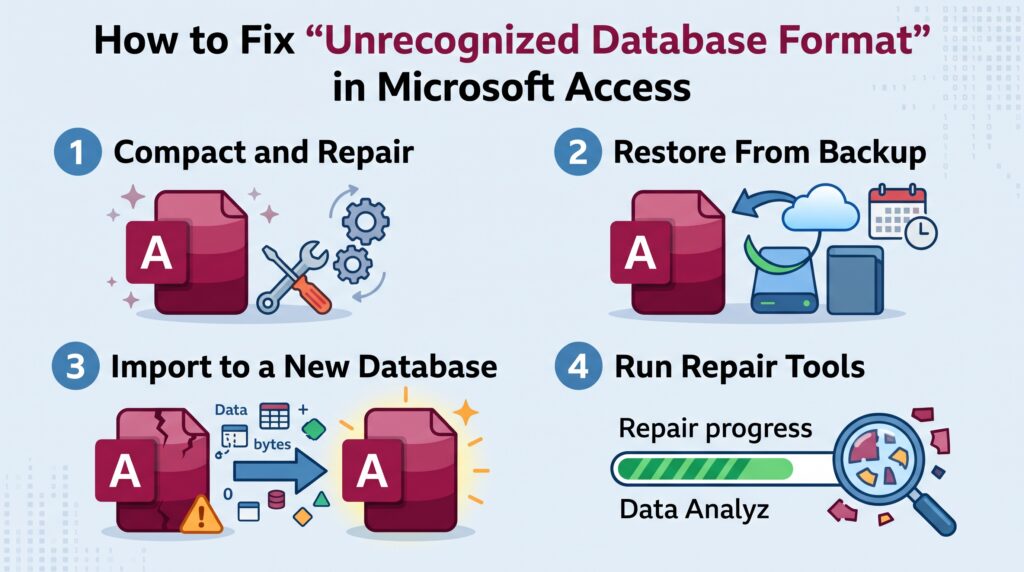
- Run Compact and Repair on the copy. Open Access and create a blank database, then choose File > Close. Now go to Database Tools > Compact and Repair Database, select your copy, and choose Compact. See Microsoft’s compact and repair guide.
- Import into a new database. If repair fails, create a blank database and use External Data > New Data Source > From Database > Access to import tables first, then queries, forms, reports and modules. Damaged objects often fail while the rest come through.
- Restore from backup if none of the above works, or check for previous versions of the file on your server.
Avoid Making It Worse
- Don’t keep opening the corrupted original or running repair on it over and over. Each attempt can overwrite data a specialist could still recover.
- Don’t let other users open the file while you work on it.
- Don’t try free “repair” tools on your only copy.
How to Stop It Happening Again
This error usually comes back if the cause isn’t fixed. The essentials:
- Split the database and give each user their own front end
- Keep the back end on a wired file server, never in a sync folder
- Avoid Wi-Fi and VPN for everyday use
- Compact regularly and back up nightly
The full checklist is in How to Keep Your Access Database Safe From Corruption. If Access then reports the database is in an inconsistent state, see that guide.
Still Not Opening?
We can often recover data from corrupted Access databases, even files that won’t open at all. See our Access database repair service, or the full walkthrough in How to Repair a Corrupted Access Database. If corruption keeps coming back, our maintenance and support service fixes the underlying setup.
Database won’t open? Book a free diagnostic before trying anything risky. The sooner we look, the more we can usually recover.
Frequently Asked Questions
What does “Unrecognized database format” mean in Access?
It means Access can’t read the file’s structure. The file is usually corrupted, but the error can also come from an incomplete copy, a file in a sync folder, or opening an .accdb file in a very old version of Access.
Can I recover data from a database with this error?
Often, yes. Work on a copy, then try Compact and Repair, importing objects into a new database, or restoring a backup. A specialist can often recover more from badly damaged files.
Does Compact and Repair fix “Unrecognized database format”?
Sometimes. It fixes minor corruption. If it fails, import the objects into a new blank database or restore from a backup.
Why does this error keep happening?
Usually because the database isn’t split, the back end sits on Wi-Fi, VPN or a sync folder, or people close Access improperly. Fixing the setup stops it recurring.
Talk to an Access Expert
Not sure what this means for your database? Book a free diagnostic call. No sales pitch, just a straight conversation about what makes sense for your situation.
Phone: 623-267-5720
Email: info@accessevolved.com
Access Evolved | 19580 W Indian School Rd, Ste 105 #815, Buckeye, AZ 85396
Sources
- Microsoft Support: Compact and repair a database
- Microsoft Support: “Database you are trying to open requires a newer version of Microsoft Access” error
- Microsoft Support: Using the Large Number data type
- Microsoft Support: Ways to share an Access desktop database
- Microsoft Support: Split an Access database