
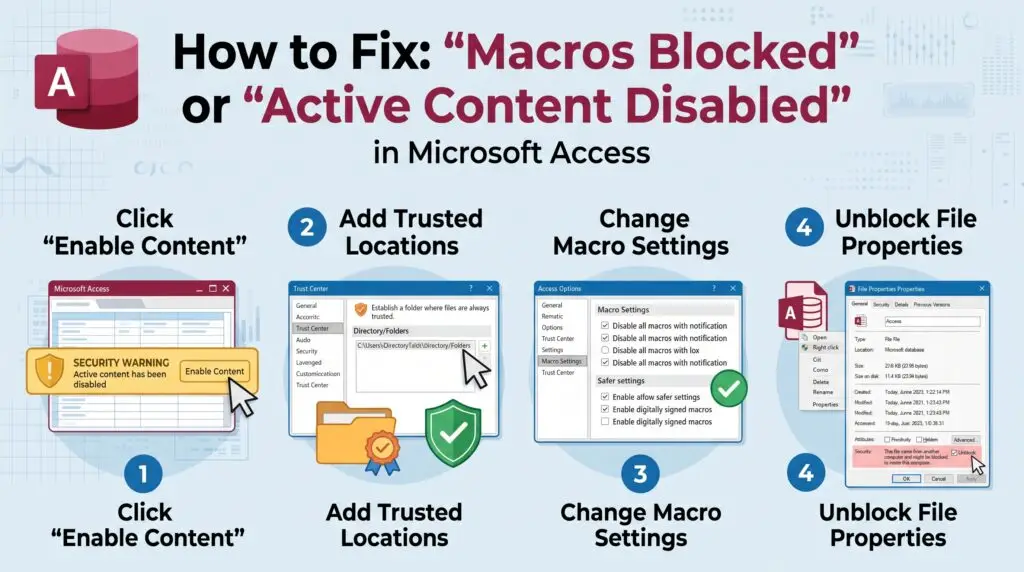
Short answer: Access is blocking your database’s code because it doesn’t trust the file’s location. For the yellow “active content has been disabled” bar, click Enable Content, or better, put the database in a trusted location. For the red “Microsoft has blocked macros” banner, close Access, right-click the file, choose Properties and select Unblock.
Reviewed by Anthony Passeri, MBA, certified Microsoft Access Expert with 21+ years of Access development.
Which Warning Are You Seeing?
| Warning | What it means | Quick fix |
|---|---|---|
| Yellow bar: “Security Warning: Some active content has been disabled. Click for more details.” | The file isn’t in a trusted location, so Access opened it in disabled mode | Click Enable Content, or add the folder as a trusted location |
| Red bar: “Security Risk: Microsoft has blocked macros from running because the source of this file is untrusted.” | The file came from the internet or email (it has the “Mark of the Web”) | Unblock the file in its Properties, or open it from a trusted location |
In both cases, the database opens and you can see tables, but buttons, VBA code, macros and action queries don’t run.
Fix the Yellow “Active Content Has Been Disabled” Warning
Option 1: Click Enable Content (Quick, Temporary)
Click Enable Content on the yellow bar. Access trusts the file for this session and usually remembers it on this computer. It’s fine for a one-off, but the warning comes back if the file moves, and every user has to do it themselves.
Option 2: Add a Trusted Location (Recommended)
A trusted location tells Access that every file in a specific folder is safe:
- In Access, go to File > Options.
- Select Trust Center > Trust Center Settings.
- Select Trusted Locations, then Add new location.
- Browse to the folder that holds your database (the front end), and select OK.
- If the folder is on a network share, first check Allow Trusted Locations on my network.
- Close all windows with OK, then reopen the database.
Microsoft walks through this in Add, remove, or change a trusted location. Repeat it on each user’s computer, or have IT set it through Group Policy.
Be specific. Trust only the folder holding your database, never broad locations like Downloads, Desktop or an entire drive, since every file there will run code without warning.
Fix the Red “Microsoft Has Blocked Macros” Warning
Since 2022, Office blocks macros by default in files that came from the internet, including email attachments and downloads. Microsoft explains the change in Macros from the internet are blocked by default in Office, and it applies to Access as well as Excel and Word. Enable Content isn’t offered for these files.
Option 1: Unblock the File
- Close Access.
- In File Explorer, right-click the database file and choose Properties.
- On the General tab, check Unblock at the bottom (next to “This file came from another computer and might be blocked”).
- Select OK, then reopen the database.
If the database arrived in a ZIP file, unblock the ZIP before extracting it, so the extracted files aren’t marked.
Option 2: Open It From a Trusted Location
Files opened from a trusted location aren’t blocked. Set one up using the steps above, then move the database there.
Option 3: Fix Network Share Settings
Microsoft notes that files on a network share outside your Local intranet zone or trusted sites are also blocked. If databases on your server are being blocked, ask IT to add the server to the Local intranet zone in Windows Internet Options, or set it through Group Policy.
If You Can’t Change These Settings
If the options are greyed out, your organization manages them through Group Policy. Ask your IT team to add the database folder as a trusted location for all users. That’s also the best long-term fix for any shared database.
What Gets Blocked in Disabled Mode
When Access doesn’t trust a database, it blocks:
- VBA code and macros (so buttons and startup forms may do nothing)
- Action queries: update, append, delete and make-table (see Creating Access Queries and Reports)
- Some ActiveX controls
The data itself is safe and readable.
Set It Up Right From the Start
For shared databases, keep each user’s front end in a dedicated, trusted folder on their computer, and the back end on a network share with the right permissions (see File Already in Use and Record Locking Errors). Setup is covered in Getting Started with Microsoft Access.
Related Errors
Once code is allowed to run, older databases sometimes hit the next problem:
When to Get Help
If code still won’t run after the database is trusted, our VBA debugging and enhancement service can find out why. For setting up trusted locations and front ends across your team, see maintenance and support. Not sure what the database’s code even does? Our legacy system documentation service maps it out.
Buttons and code still not working? Book a free diagnostic and we’ll get your database running.
Frequently Asked Questions
How do I enable macros in Access?
Click Enable Content on the yellow security bar, or add the database’s folder as a trusted location in File > Options > Trust Center > Trust Center Settings > Trusted Locations.
Why does Access say Microsoft has blocked macros?
The file came from the internet or an email attachment, so Windows marked it as untrusted. Right-click the file, choose Properties, check Unblock, then reopen it.
Why don’t my Access buttons work?
Usually because the database opened in disabled mode, which blocks code and macros. Enable content or move the file to a trusted location.
Is it safe to add a trusted location?
Yes, if you trust only the specific folder holding your database. Avoid trusting broad locations like Downloads or Desktop.
Talk to an Access Expert
Not sure what this means for your database? Book a free diagnostic call. No sales pitch, just a straight conversation about what makes sense for your situation.
Phone: 623-267-5720
Email: info@accessevolved.com
Access Evolved | 19580 W Indian School Rd, Ste 105 #815, Buckeye, AZ 85396