
Short answer: Most Access locking errors come from a leftover lock file, folder permissions that stop Access creating its lock file, or someone opening the database exclusively or in Design view. Get everyone out, delete any leftover .laccdb file, give users Modify permission on the folder, and split the database so each person has their own front end.
Reviewed by Anthony Passeri, MBA, certified Microsoft Access Expert with 21+ years of Access development.
Which Error Are You Seeing?
| Message | Most likely cause |
|---|---|
| “The file is already in use” or “Could not use ‘…’; file already in use” | Someone has it open exclusively, or a leftover lock file |
| “Could not lock file” | Users can’t create the lock file: folder permissions |
| “You do not have exclusive access to the database at this time” | Someone else is in the database while you try to change a design, or a shared front end |
| “The database has been placed in a state by user … that prevents it from being opened or locked” | Another user has it open exclusively or is saving design changes |
| “Could not update; currently locked” or a Write Conflict dialog | Two people editing the same record, or record locking settings |
How Access Locking Works
When someone opens a database, Access creates a small lock file in the same folder with the same name, ending in .laccdb (or .ldb for older .mdb files). It tracks who’s in the database and which records are being edited. When the last person closes the database, Access deletes the lock file. Most locking errors happen when that process breaks.
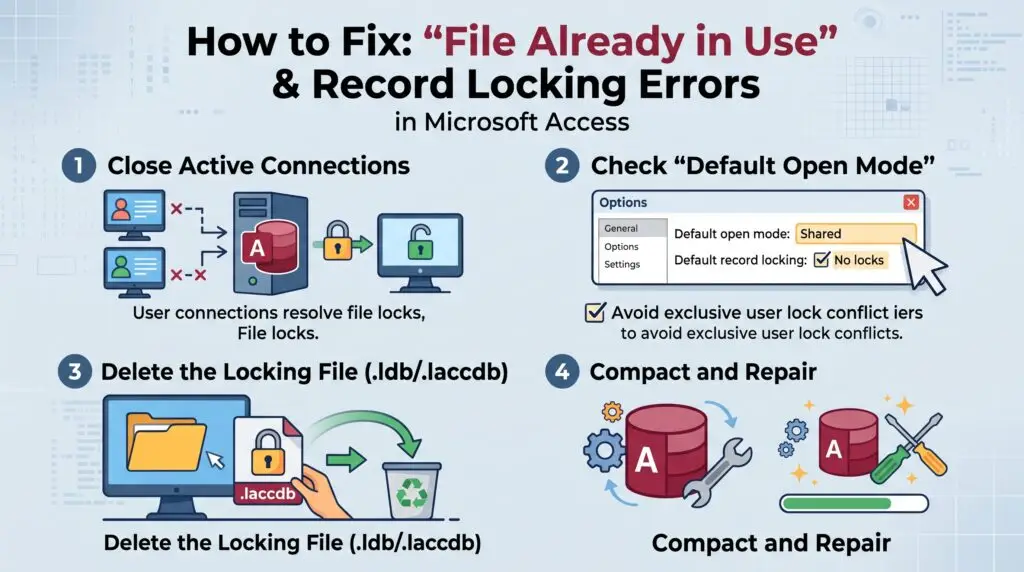
Fix 1: Clear a Leftover Lock File
After a crash or forced shutdown, the lock file can be left behind, making Access think someone is still in the database.
- Make sure everyone has closed the database. Check with your team, or have IT see who has the file open on the server.
- Open the folder holding the database.
- Delete the file with the same name ending in .laccdb or .ldb.
- Open the database again.
If Windows won’t let you delete the lock file, someone (or a stuck process) still has it open. Restarting that computer, or the server session, usually releases it.
Fix 2: Check Folder Permissions
This is the most overlooked cause. Every user needs permission to create and delete files in the database’s folder (the Windows “Modify” permission), not just to read and write the database file. Without it, Access can’t create the lock file and reports “could not lock file” or opens the database read-only.
Ask IT to grant Modify permission on the folder to everyone who uses the database. Microsoft covers shared-folder setup in Ways to share an Access desktop database.
Fix 3: Check the Default Open Mode
If one person’s Access is set to open databases exclusively, nobody else can get in while they’re working.
- On each user’s computer, go to File > Options > Client Settings.
- Under Advanced, set Default open mode to Shared.
- Make sure nobody opens the file with Open Exclusive from the Open dialog unless they mean to.
Fix 4: Split the Database
If everyone opens the same single file, any design change locks others out. Microsoft’s “You do not have exclusive access” article recommends a split database so each user has a local copy of the front end.
- Split the database: tables in a back end on the server, forms and reports in a front end.
- Give each user their own copy of the front end on their computer.
- Make design changes in a master front end, then hand out new copies, never edit while others work.
Splitting basics are covered in Getting Started with Microsoft Access.
Fix 5: Adjust Record Locking for Edit Conflicts
If people see “currently locked” or Write Conflict messages while editing:
- Go to File > Options > Client Settings.
- Under Advanced, set Default record locking to Edited record (locks only the record being changed). No locks is the default and works for most databases, but shows Write Conflict when two people save the same record.
- Keep Open databases by using record-level locking checked.
Also check for forms or code that keep records in edit mode for a long time; save records as soon as users finish with them.
Fix 6: Move the File Out of a Sync Folder
OneDrive, Dropbox and synced SharePoint folders don’t handle Access lock files properly, causing “in use” errors and corruption. Microsoft recommends against opening Access files from those locations. Move the back end to a regular network share.
When Locking Problems Mean You’ve Outgrown the Setup
Frequent locking errors with many users, or with remote users on VPN, usually mean the database has outgrown a shared file. See Slow Over VPN and the 2 GB Size Limit and Your Network Access Was Interrupted. Moving the tables to SQL Server ends file locking altogether; see our Access to SQL Server migration service.
Crashes that leave lock files behind can also damage the database. If Access then says the database is in an inconsistent state or shows “Unrecognized database format”, follow those guides, and use our prevention checklist.
When to Get Help
If locking errors keep returning, our maintenance and support service fixes the setup: splitting, permissions and front-end distribution. If the file has been damaged, see our Access database repair service.
People keep getting locked out? Book a free diagnostic and we’ll find the cause.
Frequently Asked Questions
How do I fix “file already in use” in Access?
Have everyone close the database, delete any leftover .laccdb or .ldb file in the same folder, and make sure no one opens the database in exclusive mode.
Is it safe to delete the .laccdb file?
Yes, as long as nobody has the database open. Access recreates it the next time someone opens the database.
Why does Access say “could not lock file”?
Usually the user lacks permission to create files in the database’s folder. Grant everyone who uses the database Modify permission on the folder.
How do I stop “You do not have exclusive access” errors?
Split the database so each user has their own front end, and make design changes only in a master copy while no one else is using it.
Talk to an Access Expert
Not sure what this means for your database? Book a free diagnostic call. No sales pitch, just a straight conversation about what makes sense for your situation.
Phone: 623-267-5720
Email: info@accessevolved.com
Access Evolved | 19580 W Indian School Rd, Ste 105 #815, Buckeye, AZ 85396
Sources
- Microsoft Support: “You do not have exclusive access to the database” error in Access
- Microsoft Support: Split an Access database
- Microsoft Support: Ways to share an Access desktop database
Lock file behavior, folder permission requirements and Client Settings options reflect standard Access behavior and Access Evolved’s own experience. Confirm the exact setting labels in your Access version before adding screenshots.