Short answer: Stay in Access if a small team in one office uses it and the problems are bugs or slowness. Move the data to SQL Server, keeping your Access screens, if the data is growing or more people need it at once. Rebuild in Power Apps if people need it on phones, in the field or outside your network. Many businesses do all three in stages.
Every week someone asks us the same question: “Should we get off Access?” The honest answer is that it depends on what’s actually going wrong. Many businesses don’t need to leave Access at all. Others need to move their data and keep their screens. Some need to start over on a modern platform.
This guide walks through the three realistic paths, what each one fixes, and what each one costs. It’s based on more than 21 years of building, rescuing and migrating Access databases.
Option 1: Stay in Access (and Make It Solid)
Access is still part of Microsoft 365 business plans and still gets updates (see Is Microsoft Access Still Supported?). For a small team in one office, a well-built Access database is often the cheapest, fastest tool you’ll ever own.
Staying makes sense when:
- Fewer than 10 to 15 people use it, and they’re on the same network
- The data file is well under Access’s 2 GB limit
- Nobody needs it on a phone, tablet or outside the office
- The real problem is bugs, slowness or corruption, not the platform itself
If that sounds like you, the right move is usually a cleanup: split the database into a front end and back end, fix the VBA that’s throwing errors, compact and back up on a schedule, and document how it works. That’s often a few days of work, not a few months. See How to Keep Your Access Database Safe From Corruption.
The catch: Access was designed for a shared network drive. If your team is remote, or someone has put the file in OneDrive or SharePoint, you’ll keep fighting slowness and corruption no matter how good the database is.
Option 2: Move the Data to SQL Server, Keep the Access Screens
This is the most underrated option. Your tables move to SQL Server (or Azure SQL), and your existing Access forms, reports and VBA keep working as the front end. Users mostly see the same screens they already know.
This path makes sense when:
- The database is nearing 2 GB, or slows down as more people use it at once
- You need real backups, security and audit trails on the data
- Your forms and reports work well, and retraining everyone would be expensive
- You want other tools (Power BI, Excel, a website) to read the same data
SQL Server Express is free for databases up to 10 GB, which covers most small and midsize businesses. Larger or cloud-hosted setups use paid SQL Server or Azure SQL.
The catch: users still need Access installed on a Windows PC. This fixes the data layer, not the “we need it on a phone” problem. Some queries also need tuning so they run on the server instead of pulling whole tables across the network.
Option 3: Rebuild in Power Apps (Power Platform)
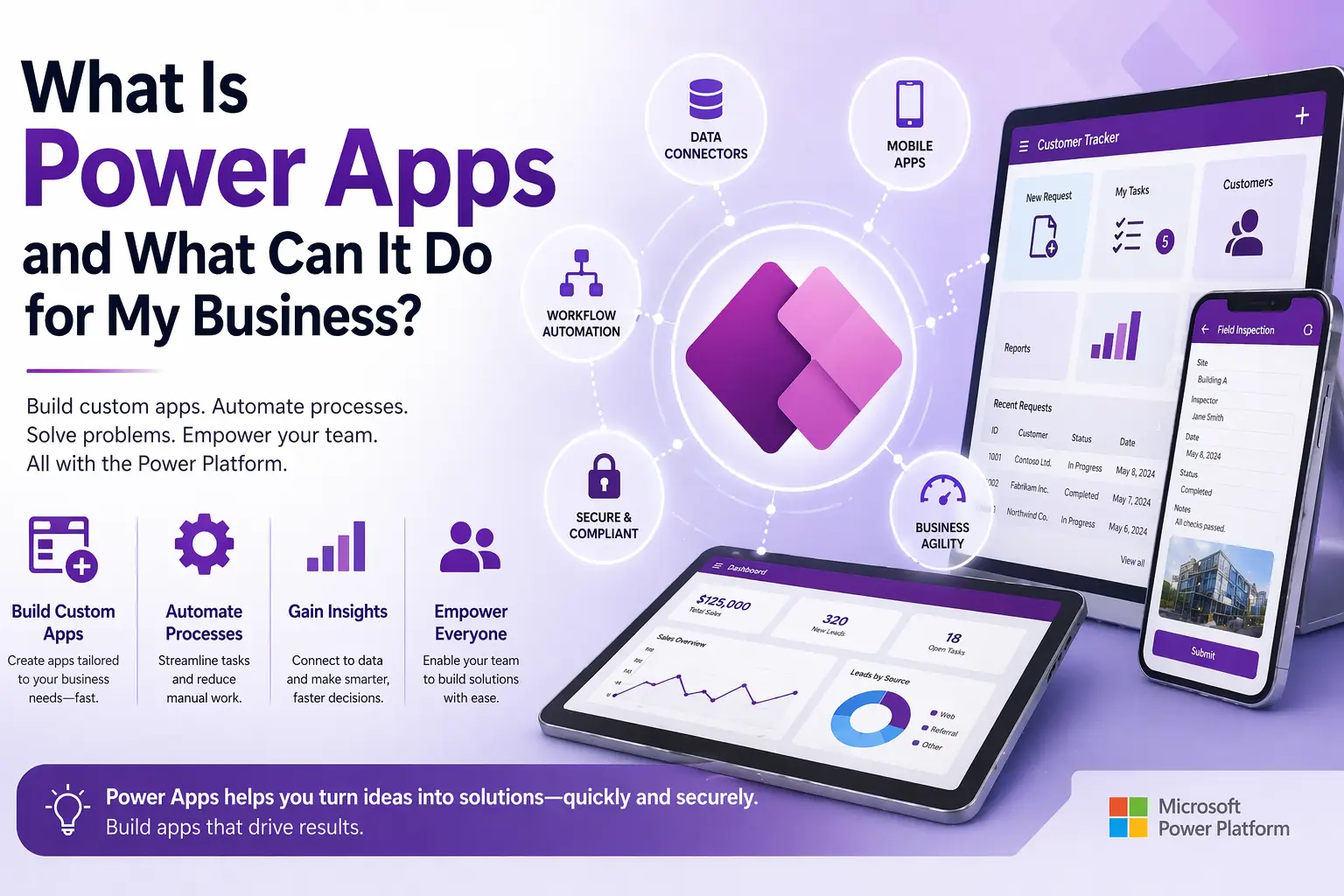
Power Apps replaces the Access screens with web and mobile apps that run in a browser, on phones and inside Microsoft Teams. The data usually moves to Dataverse or SharePoint, and Power Automate takes over the emails, approvals and scheduled jobs your VBA used to handle.
This path makes sense when:
- People need the app in the field, on a phone or outside your network
- You already run on Microsoft 365 and want sign-in, permissions and sharing handled by it
- The process involves approvals, notifications or handoffs between people
- Your Access database has become one person’s project that nobody else understands
The catch: this is a rebuild, not a conversion. No tool turns Access forms and VBA into Power Apps automatically, so expect a real project. Licensing matters too. Apps built on SharePoint with standard connectors are covered by most Microsoft 365 business plans. Apps that use Dataverse or SQL Server need Power Apps Premium, which Microsoft is raising from $20 to $22 per user per month on January 1, 2027, for new purchases and renewals.
Side-by-Side Comparison
| Stay in Access | Access + SQL Server | Power Apps | |
|---|---|---|---|
| Best for | Small teams in one office | Growing data, same screens | Remote, mobile, multi-team use |
| Works on phones | No | No | Yes |
| User retraining | None | Minimal | Moderate |
| Typical project size | Days | Weeks | Weeks to months |
| Ongoing license cost | Included in most Microsoft 365 business plans | Free (Express) to moderate | Included (SharePoint) or Premium per user |
| Biggest risk | Remote access and corruption | Slow queries if not tuned | Underestimating the rebuild |
Five Questions That Usually Decide It
- Where are your users? All in one office points to Access. Remote or in the field points to Power Apps.
- How many people use it at the same time? Past about 15, the back end needs to be SQL Server or Dataverse.
- How big is the data file, and how fast is it growing? Close to 2 GB means the data has to move.
- How much logic is in VBA? Lots of VBA makes SQL Server the cheaper first step. You can still go to Power Apps later.
- Who maintains it if your Access person leaves? If the answer is “nobody,” document it before you do anything else.
You Don’t Have to Pick Just One
Many of our projects are staged. We stabilize the Access database first so the business stops losing time. Then we move the data to SQL Server or Dataverse. Then we rebuild the pieces people need on the go in Power Apps, while the office keeps using what works. Each step pays for itself before the next one starts.
For costs, see How Much Does It Cost to Migrate Access to Power Apps? For a closer look at one database, see Repair, Upgrade or Replace Your Access Database?
Related services: Access Maintenance & Support · Access to SQL Server Migration · Access to Power Platform Migration
Not sure which path fits? We’ll look at your database, how your team uses it and where it hurts, then tell you which option makes sense, including “leave it alone” if that’s the right answer. Book a free diagnostic.
Frequently Asked Questions
Should I move my Access database to SQL Server or Power Apps?
Move to SQL Server if you need more capacity, users or security but want to keep your Access screens. Move to Power Apps if people need the app on phones, in the field or outside your network.
Can I keep using my Access forms after moving to SQL Server?
Yes. With SQL Server as the back end, your Access forms, reports and VBA keep working as the front end. Some queries may need tuning for best performance.
Is SQL Server Express really free?
Yes. SQL Server Express is free for databases up to 10 GB, which covers most small and midsize businesses. Larger databases need a paid edition or Azure SQL.
How much does Power Apps Premium cost?
Power Apps Premium is $20 per user per month, rising to $22 on January 1, 2027, for new purchases and renewals. Apps on SharePoint with standard connectors are covered by most Microsoft 365 business plans.
Anthony Passeri, MBA, is the founder of Access Evolved and a certified Microsoft Access Expert with 21+ years of Access and relational database experience. He helps businesses keep critical Access databases running and modernize them to Power Platform or SQL Server. More about Anthony
Talk to an Access Expert
Not sure what this means for your database? Book a free diagnostic call. No sales pitch, just a straight conversation about what makes sense for your situation.
Phone: 623-267-5720
Email: info@accessevolved.com
Access Evolved | 19580 W Indian School Rd, Ste 105 #815, Buckeye, AZ 85396