We get the same Microsoft Access questions every week, from business owners deciding whether to keep a database, IT managers inheriting one, and analysts building their first. Here are plain answers to the 14 most common, grouped by topic.
Microsoft Access Basics
What is Microsoft Access, and who is it for?
Microsoft Access is a relational database program that’s part of Microsoft 365. It’s built for individuals, small teams and departments that need to store, search and report on structured data without the cost and complexity of SQL Server or Oracle. It suits business analysts, operations teams and power users who have outgrown spreadsheets but don’t have a dedicated development team.
How is Access different from Excel?
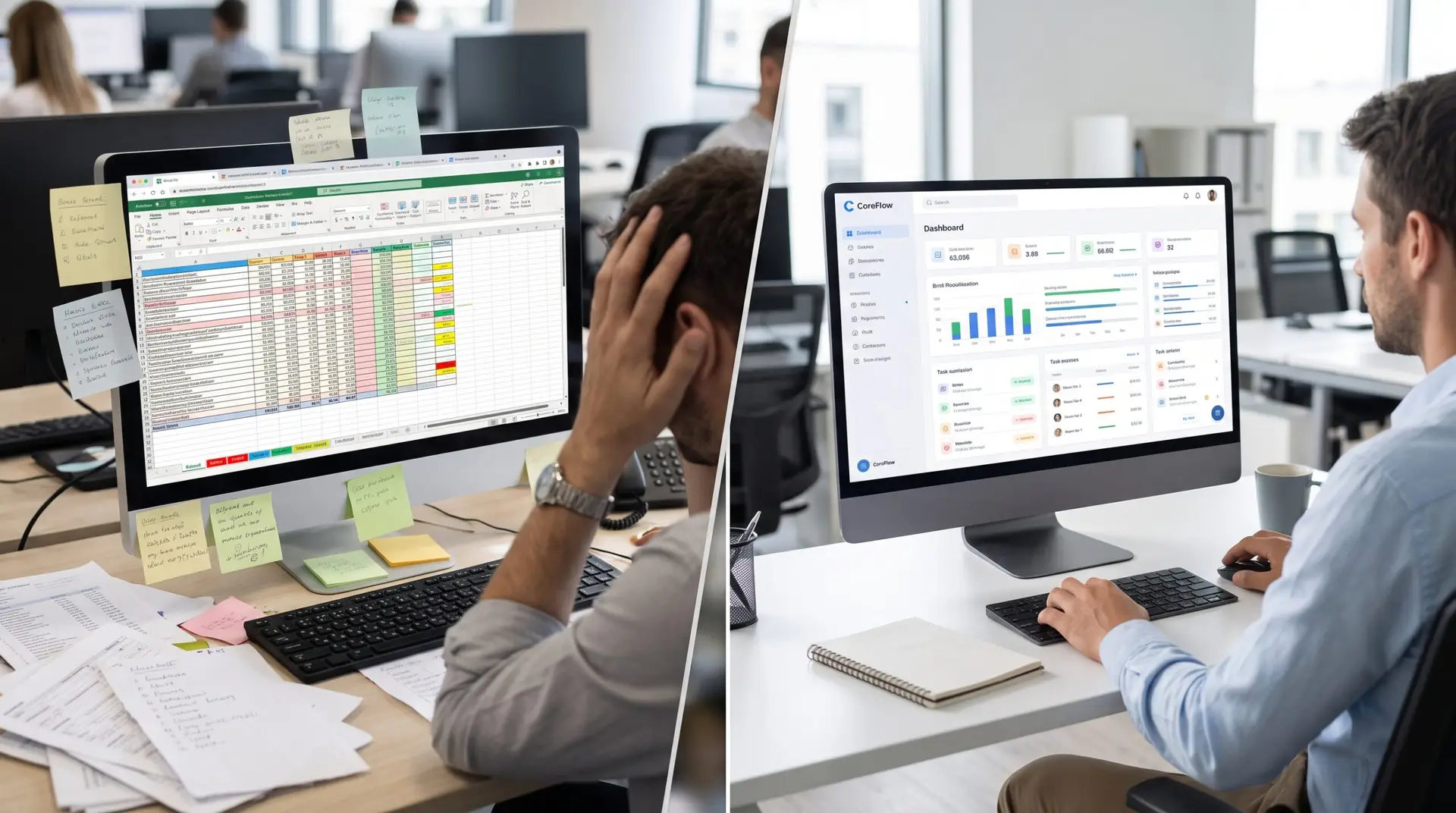
Excel is a spreadsheet, built for calculations, financial models and quick analysis. Access is a database, built to store large numbers of records, keep data consistent, connect related tables and let several people work in the same data at once.
A simple rule: if you’re managing thousands of rows with lookups between tables, data entry forms or complex queries, use Access. If you’re running formulas and pivot tables on one flat list, Excel is fine.
What’s the difference between an Access query and a report?
A query is a question you ask your data. It finds, filters, calculates or changes records based on criteria you set, using SQL behind the scenes. A report is a formatted, print-ready view of data, usually built on a query. Queries handle the logic; reports present the results.
Do I need to know SQL to use Access?
No. Access’s Query Design view lets you build queries by dragging tables and fields. But knowing SQL makes you far more effective with complex joins, subqueries and calculations. Access shows the SQL behind every query it builds, which makes it a good place to learn.
Can Access connect to other data sources?
Yes. Access can link to SQL Server, Azure SQL, SharePoint lists, Dataverse, Excel files, text and CSV files, and ODBC databases like Oracle and MySQL. Linked tables behave like local tables but read and write to the outside source, so Access works well as a front end even when the data lives elsewhere. If a linked table throws an “ODBC call failed” error, that’s usually a connection or driver issue we can fix.
Is Microsoft Access available on a Mac?
No. Access runs only on Windows, and there is no Mac version. Mac users can run it inside a Windows virtual machine, or move the database to a web-based platform like Power Apps, which works in any browser.
Access Limits and Multiple Users
Can multiple people use an Access database at the same time?
Yes, if it’s set up correctly. The database should be split into a front end (forms, queries, reports) on each user’s computer and a back end (tables) on a shared network drive.
Performance drops as more people work at once, and in practice we don’t recommend more than 10 to 15 people using it at the same time. Beyond that, the standard fix is moving the tables to SQL Server or Dataverse and linking them back to the Access front end. Frequent file-in-use or locking errors are a sign you’ve hit this point.
What are the limits of Microsoft Access?
According to Microsoft’s Access specifications:
| Limit | Maximum |
|---|---|
| Database file size | 2 GB, including system objects |
| Concurrent users | 255 (real-world performance drops long before that) |
| Fields per table | 255 |
| Objects per database | 32,768 |
Access also isn’t designed for public websites, high-volume transaction processing or systems that must never go down. For most internal business apps with tens of thousands to a few million records and a small team, these limits rarely matter. If your database is getting close to 2 GB or is slow over a VPN, it’s time to plan ahead.
Cost and Security
How much does Microsoft Access cost?
You may already have it. Microsoft says Access is included in these Microsoft 365 plans on Windows PCs:
- Microsoft 365 Personal and Family
- Microsoft 365 Apps for business
- Microsoft 365 Business Standard and Business Premium
- Most enterprise plans with desktop apps
It’s not included in Microsoft 365 Business Basic or other web-only plans. You can also buy Access as a one-time purchase. Check your subscription before buying anything.
Can Access handle sensitive or regulated data?
It can, with significant caveats. Access can encrypt a database file with a password, but modern .accdb files have no user-level security, no row-level security and no built-in audit trail.
Organizations under HIPAA, SOX or PCI-DSS that use Access usually add controls at the network and file level, or move sensitive data to SQL Server or Dataverse, which offer much stronger security and auditing. If compliance is a core requirement, Access shouldn’t be your first choice for storing the data.
What’s the best way to secure an Access database?
At minimum:
- Split the database into a front end and back end.
- Store the back end on a network folder with restricted permissions.
- Encrypt the back end with a strong password.
- Distribute the front end as a compiled .accde file so users can’t change forms or code.
- Never send .accdb files containing sensitive data by email. Anyone with Access can open them.
For stronger security, move the tables to SQL Server and control access with Windows or Microsoft Entra ID sign-ins. Our Access maintenance and support service includes a security review.
The Future of Microsoft Access
Is Microsoft killing Access?
No. Microsoft still ships Access with Microsoft 365 and continues to release updates and new features. It remains in wide use, especially in finance, healthcare and government.
What has ended is support for older versions: Access 2016 and 2019 stopped getting security updates in October 2025, and Access 2021 followed in October 2026. Meanwhile, Microsoft’s biggest long-term investment is in Power Apps and Dataverse. Working Access systems don’t need an emergency migration, but new projects deserve a careful platform decision. We cover this in depth in Is Microsoft Access Being Replaced?
What is an Access migration, and when do I need one?
An Access migration moves an aging Access database to a modern platform, usually Power Apps with Dataverse, SharePoint lists or SQL Server. You typically need one when the database has outgrown its limits, your company has moved to the cloud, users need mobile access, or a security or compliance requirement can’t be met in Access.
Migrations range from a simple move of tables and forms to a full redesign. See How to Know When It’s Time to Migrate Off Microsoft Access and What Is the Best Replacement for Microsoft Access?
What skills does an Access developer need?
A strong Access developer understands relational database design (normalization, primary and foreign keys, relationships), writes SQL fluently, and knows VBA for automating tasks, validating input and building application logic. Good form and report design matters for usability. Increasingly, Access developers also need Power Platform skills, since many modernization projects land there. If your team’s VBA is causing problems, see our VBA debugging and enhancement service.
Have a question that isn’t here? Book a free diagnostic and ask us directly.
Anthony Passeri, MBA, is the founder of Access Evolved and a certified Microsoft Access Expert with 21+ years of Access and relational database experience. He helps businesses keep critical Access databases running and modernize them to Power Platform or SQL Server. More about Anthony
Talk to an Access Expert
Not sure what this means for your database? Book a free diagnostic call. No sales pitch, just a straight conversation about what makes sense for your situation.
Phone: 623-267-5720
Email: info@accessevolved.com
Access Evolved | 19580 W Indian School Rd, Ste 105 #815, Buckeye, AZ 85396
Sources
Licensing School: Office LTSC 2021 end of support
Microsoft Support: Access specifications
Microsoft Support: Access included as part of Microsoft 365 subscriptions
Microsoft Access blog: A Personal Note to the Access Community (July 2026)