Short answer: Before you build a Power App or hire someone to, understand six things: the two app types (canvas and model-driven), where your data lives, delegation, Power Fx formulas, connectors, and environments. Together they decide what your app can do, how well it performs and what it costs.
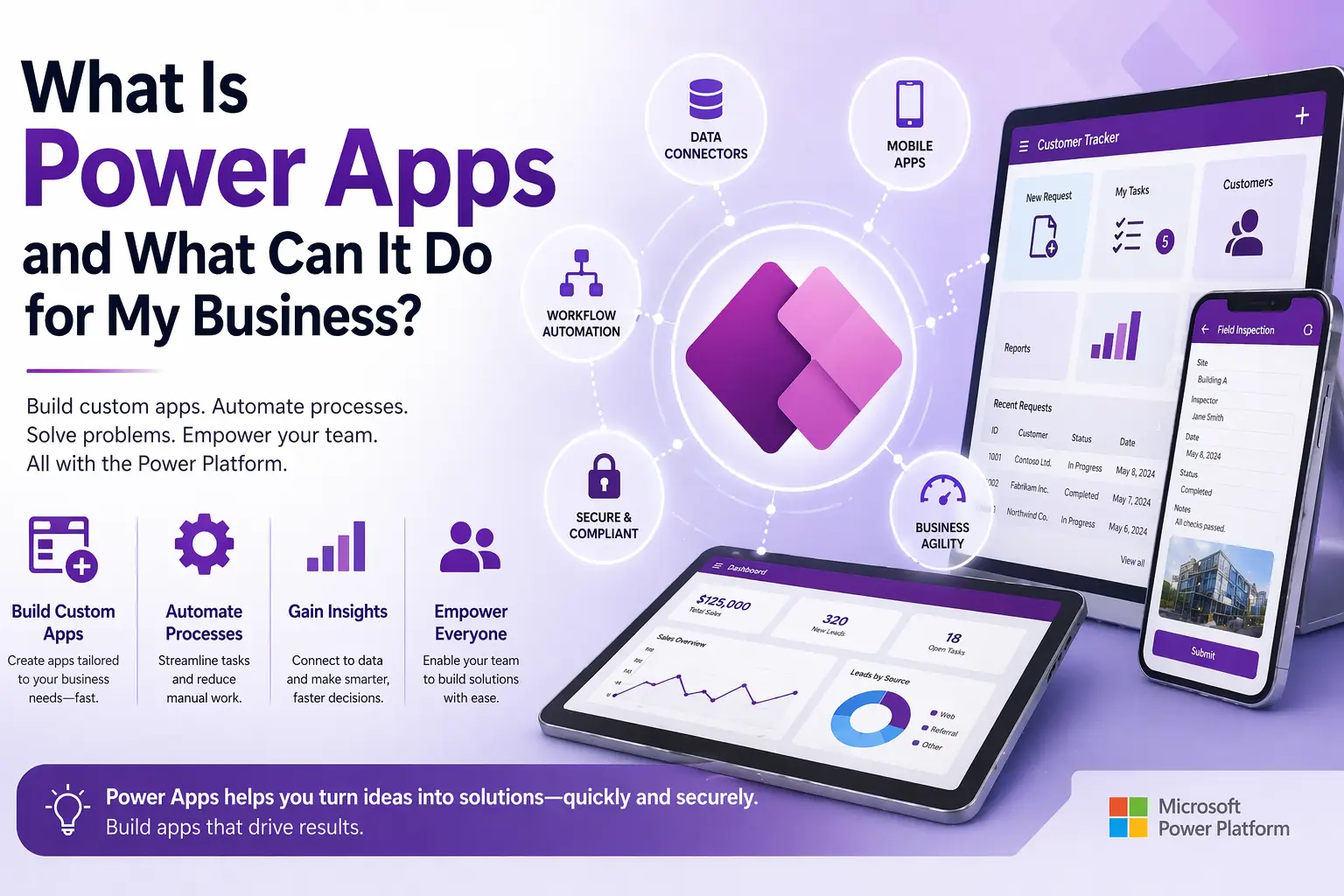
Power Apps is Microsoft’s tool for building custom business apps that run on phones, tablets and browsers. If you’re brand new to it, start with What Is Power Apps? for the big picture. This post goes one level deeper: how Power Apps actually works, and what you need to know before you build anything.
How Power Apps Fits Into the Power Platform
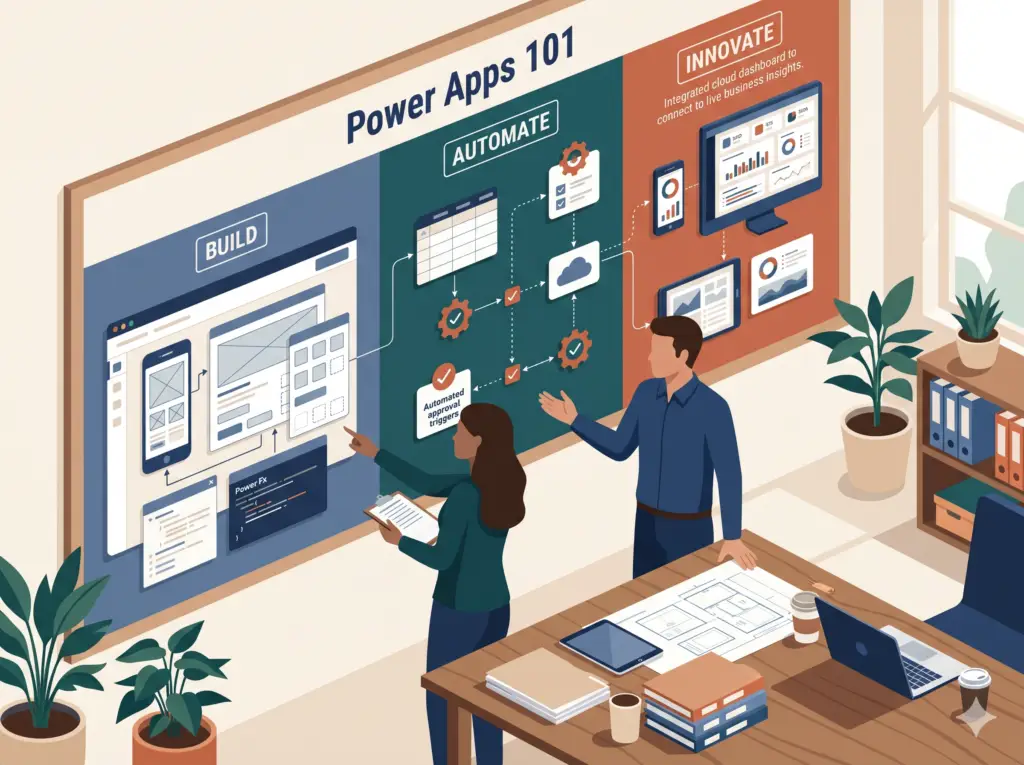
Power Apps is one of four tools designed to work together:
- Power Apps builds the screens people use.
- Power Automate runs the work behind the scenes: approvals, notifications, moving data.
- Dataverse is the secure cloud database.
- Power BI turns data into reports and dashboards.
The strongest business solutions combine all four.
The Two Types of Power Apps
There are two fundamentally different kinds of apps, and choosing the right one matters before you start.
| Canvas apps | Model-driven apps | |
|---|---|---|
| How you build | Design every screen yourself, then connect data | Design the data first; screens are generated from it |
| Design control | Full control over layout and look | Standard layout, limited customization |
| Best for | Mobile apps, forms, field work, custom experiences | Complex data with many related tables |
| Data sources | SharePoint, Dataverse, SQL Server, Excel and more | Dataverse only |
| Licensing | Can run on Microsoft 365 licensing with standard connectors | Needs Power Apps Premium (because of Dataverse) |
Canvas Apps
Canvas apps start with a blank screen. You place controls where you want them, connect them to data, write formulas for their behavior, and design the experience exactly how your team works. They’re the right choice when the interface matters: a specific layout, a mobile-first design, or a screen that matches a real workflow. That flexibility means more design decisions upfront, but the result fits your process precisely.
Model-Driven Apps
Model-driven apps start with the data: the tables, relationships and business rules in Dataverse. Power Apps then builds the screens automatically. They’re faster to build for complex, data-heavy scenarios with many related tables and lots of navigation between records. The interface is less customizable, but data handling is much more powerful out of the box.
For most small business needs (field reports, intake forms, approval tracking, dashboards), canvas apps are the starting point. Model-driven apps become relevant as data gets more complex.
Key Concept 1: Data Sources
Every Power App connects to a data source, the place your records live. The choice affects what the app can do, how it performs and what it costs:
- SharePoint lists: included with Microsoft 365; good for simple apps with modest data.
- Dataverse: a true relational cloud database with record-level security and large-data support; needs Power Apps Premium.
- SQL Server: best when your data already lives in SQL Server (it’s a premium connector).
- Excel in OneDrive: fine for prototypes, not for business-critical apps.
For a full comparison, see SharePoint Lists vs Dataverse.
Key Concept 2: Delegation
Delegation is one of the most important, and most misunderstood, concepts in Power Apps.
When your app filters, sorts or searches data, Power Apps tries to hand that work to the data source, so the database does the filtering and returns only what you need. That’s delegation, and it’s how Power Apps handles large datasets.
Not every operation can be delegated to every data source. When an operation can’t be delegated, Power Apps downloads only the first 500 records (adjustable up to 2,000) and filters those locally, silently ignoring the rest. Many basic filters work fine on SharePoint, but common needs like searching inside text often can’t be delegated. Dataverse and SQL Server support far more. Microsoft explains the details in its delegation overview.
Understanding delegation before choosing a data source prevents the classic failure: an app that works perfectly in testing and returns wrong results once real data grows.
Key Concept 3: Formulas (Power Fx)
Power Apps uses a formula language called Power Fx, which works a lot like Excel formulas. If you’re comfortable with Excel, it will feel familiar: IF, AND, OR, Filter and LookUp, applied to app controls and data instead of cells.
Formulas control everything: what a gallery shows, whether a button is visible, what happens when a form is submitted, how a date is formatted. The more comfortable you are with Power Fx, the more you can change without calling a developer.
Key Concept 4: Connectors
Connectors link Power Apps to other systems and data. Microsoft offers hundreds of them, for SharePoint, Outlook, Teams, Excel, SQL Server, Salesforce, QuickBooks and many more.
- Standard connectors (like SharePoint, Outlook and Teams) are included with most Microsoft 365 business plans.
- Premium connectors (like SQL Server and many third-party systems), plus Dataverse, require Power Apps Premium.
- Custom connectors can link to almost any modern web service with an API.
Key Concept 5: Environments
Power Apps live inside environments, separate containers for different deployments. Most small businesses start with the single default environment. As you build more, best practice is separate development, testing and production environments, so changes are tested before they reach live users.
Environments also determine which Dataverse database your apps use, which security roles apply, and which solutions are installed. They matter more as your use of the platform grows.
How Power Automate Fits In
Power Apps and Power Automate are designed to work together. Power Apps handles the screens and interactions; Power Automate handles what happens next.
Example: a user submits a purchase request in a canvas app. That triggers a flow that routes it to the right approver, notifies them in Teams, records their decision, updates the record in Dataverse and tells the requester the result. The user just sees that the process works.
Power Apps can save data on its own, but without Power Automate you miss approvals, notifications and connections to other systems, which is where much of the value lives. For practical tips, see Top 10 Power Automate Tricks.
Licensing Basics
Licensing is one of the most misunderstood parts of Power Apps. The simplified version:
| What you’re building | License needed |
|---|---|
| Canvas apps on SharePoint lists and standard connectors | Usually included in Microsoft 365 business plans |
| Apps using Dataverse, model-driven apps, or premium connectors | Power Apps Premium, about $20 per user per month at list price |
Prices change, and enterprise and nonprofit pricing can differ. Check Microsoft’s licensing details for current plans. The right choice depends on how many apps you’re building and how many people use them.
How Long Does It Take to Build a Power App?
It depends on complexity:
- A simple single-screen form on a SharePoint list with a basic notification: a day or two for someone who knows the platform; 2 to 4 weeks as a full project with requirements and testing.
- A multi-screen business app on Dataverse with user roles and several automations: typically 4 to 8 weeks.
- A full operational platform with complex data, custom connectors, advanced security and many flows: 6 to 12 weeks or more.
The most common mistake is underestimating scope. “I just need a form that does X” often turns out to involve more data relationships, user roles and edge cases than it first seems. A proper scoping conversation is worth the time. For costs, see How Much Does a Power Apps Project Cost?
Should You Build It Yourself or Hire Someone?
Power Apps is genuinely learnable for non-developers, with extensive documentation and a large community. If you have time to learn, a fairly simple app and a data source that doesn’t need Dataverse, building it yourself is a legitimate path.
Hiring help makes more sense when:
- Your data has many related tables
- You need Dataverse set up correctly from the start
- The app must connect to outside systems
- You’re replacing a mission-critical process and can’t afford a failed launch
- Your time is worth more than the learning curve
A good Power Apps consultant doesn’t just build; they ask the right questions about your data, users and process before designing a single screen. The difference between an app that works and one that works well is almost always in the planning. See our Power Apps and Power Platform development service.
Planning your first Power App? Book a free diagnostic and we’ll help you choose the right app type, data source and licensing before you build.
Frequently Asked Questions
What is the difference between canvas and model-driven apps?
Canvas apps let you design every screen yourself and connect to many data sources. Model-driven apps generate screens automatically from Dataverse tables and suit complex, data-heavy applications, but they require Power Apps Premium.
What is delegation in Power Apps?
Delegation means the data source does the filtering and sorting. When an operation can’t be delegated, Power Apps only processes the first 500 to 2,000 records, which can give incomplete results on large lists.
Is Power Apps hard to learn?
Not for simple apps. If you know Excel formulas, Power Fx will feel familiar. Complex data, integrations and security take more experience.
What language does Power Apps use?
Power Apps uses Power Fx, a low-code formula language based on Excel formulas.
Anthony Passeri, MBA, is the founder of Access Evolved and a certified Microsoft Access Expert with 21+ years of Access and relational database experience. He helps businesses keep critical Access databases running and modernize them to Power Platform or SQL Server. More about Anthony
Talk to an Access Expert
Not sure what this means for your database? Book a free diagnostic call. No sales pitch, just a straight conversation about what makes sense for your situation.
Phone: 623-267-5720
Email: info@accessevolved.com
Access Evolved | 19580 W Indian School Rd, Ste 105 #815, Buckeye, AZ 85396
Sources
- Microsoft Learn: Understand delegation in a canvas app
- Microsoft Learn: Power Apps licensing and Microsoft 365 capabilities
- AlphaBOLD: Power Apps pricing, 2026