Almost every Access database has an author. Maybe it was an office manager who taught herself VBA in 2009, a former IT hire, or the owner’s nephew who “knew computers.” Whoever it was, the database now runs part of your business—and if the person who built your Access database leaves, or is preparing to retire, your daily operations are suddenly at risk.
This is one of the most common calls we get: “Our database person gave notice, and nobody knows how it works.”
Why this is such a big risk
An Access database is not just data. Over the years it accumulates:
- Business rules buried in code. VBA routines that calculate prices, flag exceptions, or send emails, often with no comments.
- Queries that depend on other queries. Change one and three reports quietly break.
- Workarounds nobody wrote down. “Don’t click that button before running the month-end report” lives only in someone’s head.
- Hidden dependencies. Linked Excel files, network paths, scheduled tasks, and printers the database expects to find.
When the author leaves, none of that leaves with a manual. It leaves with them.
Warning signs the person who built your Access database is a single point of failure
- Only one person can make changes to the database.
- Nobody has ever opened the VBA editor except that person.
- There is no written description of what the system does.
- Backups are “a copy of the file somewhere,” which is also how many teams end up with a corrupted database and no clean copy.
- Staff avoid asking for changes because it “might break something.”
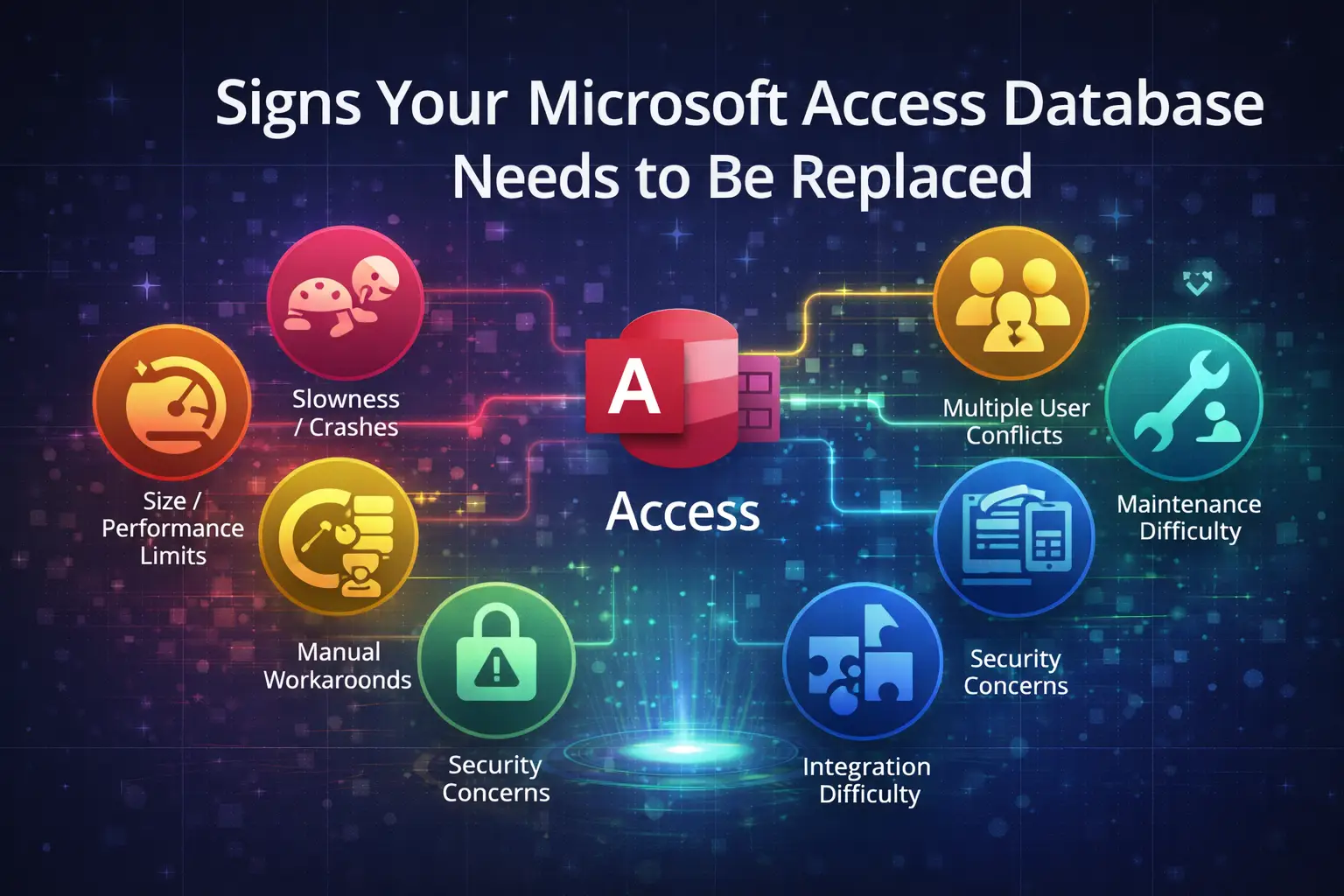
Even one of these means your business has a single point of failure. If several sound familiar, read signs your Access database needs to be replaced.
What to do before they leave (or right after)
- Get a verified backup. Copy both the front-end and back-end files and confirm they open on a different computer. Ongoing Access maintenance and support can make this routine instead of a one-time scramble.
- Hold a knowledge-transfer session. Even two hours with the author, recorded and focused on the questions “what does it do, what runs on a schedule, and what do people do manually around it,” is worth a great deal.
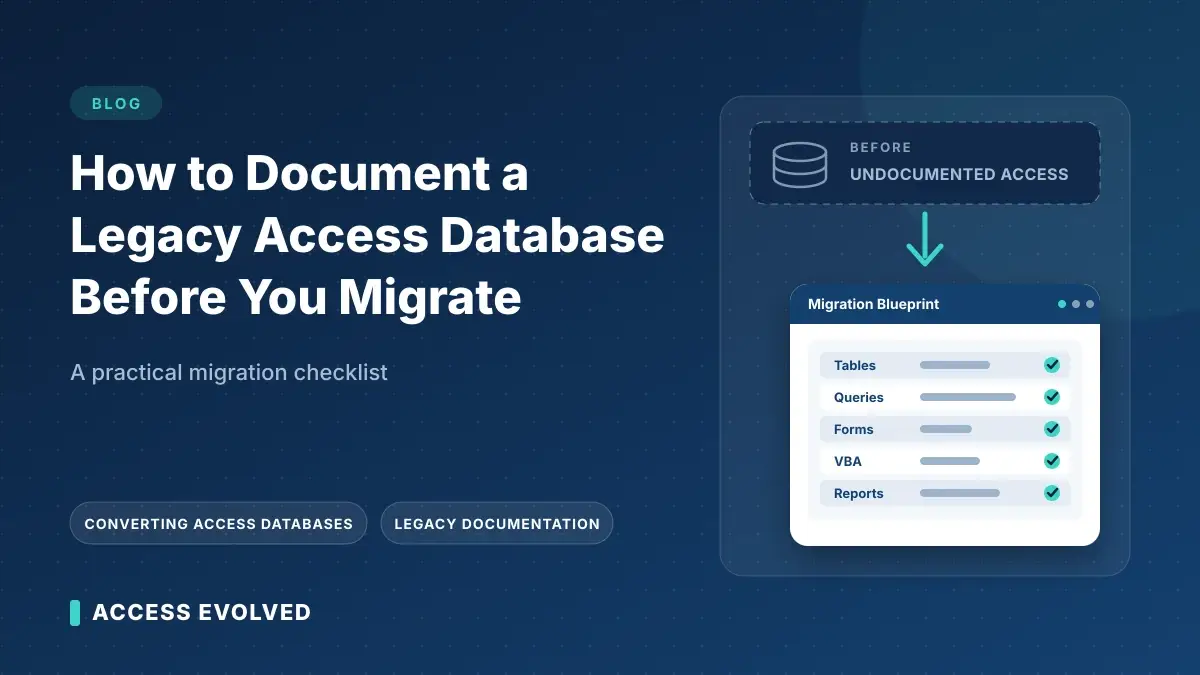
- Inventory the system. List every table, query, form, report, and macro or VBA module, and note what each does and who uses it. This is exactly what our legacy system documentation service produces.
- Identify what must never break. Invoicing, payroll exports, and compliance reports come first.
- Decide: maintain, document, or migrate. If the database is stable and small, documentation may be enough. If it’s fragile, slow, or business-critical, this is the right moment to plan a move to a supported platform like Power Apps. Our migration approach starts with documentation, and our post on how much a migration costs can help you budget. If you’re weighing other options, see Power Apps vs. SQL Server vs. staying in Access.
Don’t wait for the resignation letter
The best time to document an Access database is while the person who built it still works for you. Second best is today. Documentation costs a fraction of an emergency rescue, and it gives you real options instead of urgent ones.
For an example of how this plays out, read our Access to Power Platform modernization case study, where the person who built the database had left years earlier.
Is your Access database a one-person system? Book a free diagnostic or contact us and we’ll document what you have and show you what a safe path forward looks like.
Related reading
Converting an Old Microsoft Access Database to a Modern Platform
How to Know When It’s Time to Migrate Off Microsoft Access
Does Microsoft Still Support Access? What Every Access User Needs to Know in 2026