Short answer: Access corruption is predictable: dropped network connections mid-save, improper shutdowns, too many users on one shared file, and databases near the 2 GB limit. Prevent it by splitting the database, giving each user their own front end, keeping the back end on a wired file server (never a cloud sync folder), compacting regularly and backing up nightly.
Is your database corrupted right now? Stop here. Close Access everywhere, make a copy of the file before anything else, and don’t let anyone reopen it. Then follow our step-by-step guide: How to Repair a Corrupted Access Database.
If you’re reading this because you’re worried it might happen, because the file has been acting strange, it’s old, or too many people use it at once, that instinct is right. Here’s why Access databases corrupt, how to spot the warning signs, and how to prevent it.
Why Access Databases Corrupt
Access corruption isn’t random. It happens for specific, predictable reasons, and each one has a fix.
| Cause | What happens | How to prevent it |
|---|---|---|
| Network drop during a save | A record is only partly written; damage builds until the file won’t open | Wired connections, reliable file server, no VPN or Wi-Fi for daily use |
| Improper shutdown | A crash or power loss leaves the file half-updated | Close Access properly; use a battery backup (UPS) on the server |
| Too many simultaneous users | Constant write conflicts on one shared file | Split the database; beyond about 10 to 15 users, move data to SQL Server |
| File size near 2 GB | Errors and corruption increase as the file nears Microsoft’s 2 GB limit | Compact regularly; archive old data; move to SQL Server |
| Outdated Access versions | Known bugs stay unfixed | Stay on Access for Microsoft 365 or Access 2024 |
| Malware or ransomware | The file is damaged or encrypted | Supported software, security updates and offline backups |
A few notes:
- Network drops are the biggest cause. If your file lives on a shared drive and several people open it at once, this risk is present every day. It’s why Access is often slow and fragile over VPN.
- Multiple users are fine, up to a point. Access supports multiple users by design, but in our experience a shared file gets fragile beyond about 10 to 15 people working at once.
- Unsupported versions add risk. Access 2016 and 2019 lost support in October 2025, and Access 2021 in October 2026. See Is Microsoft Access Still Supported?
Warning Signs of Corruption
Corruption doesn’t always announce itself. More often it builds gradually. Watch for:
- The database takes much longer to open than it used to
- Records go missing or appear twice, or show #Deleted
- Forms that worked yesterday throw errors today
- Queries that took seconds now time out or return wrong results
- Access asks to repair the file more often, or warns the database is in an inconsistent state
- The file grows dramatically without many new records
One sign alone may be harmless. Several together mean the database is under stress, and corruption may already be developing.
10 Ways to Prevent Access Database Corruption
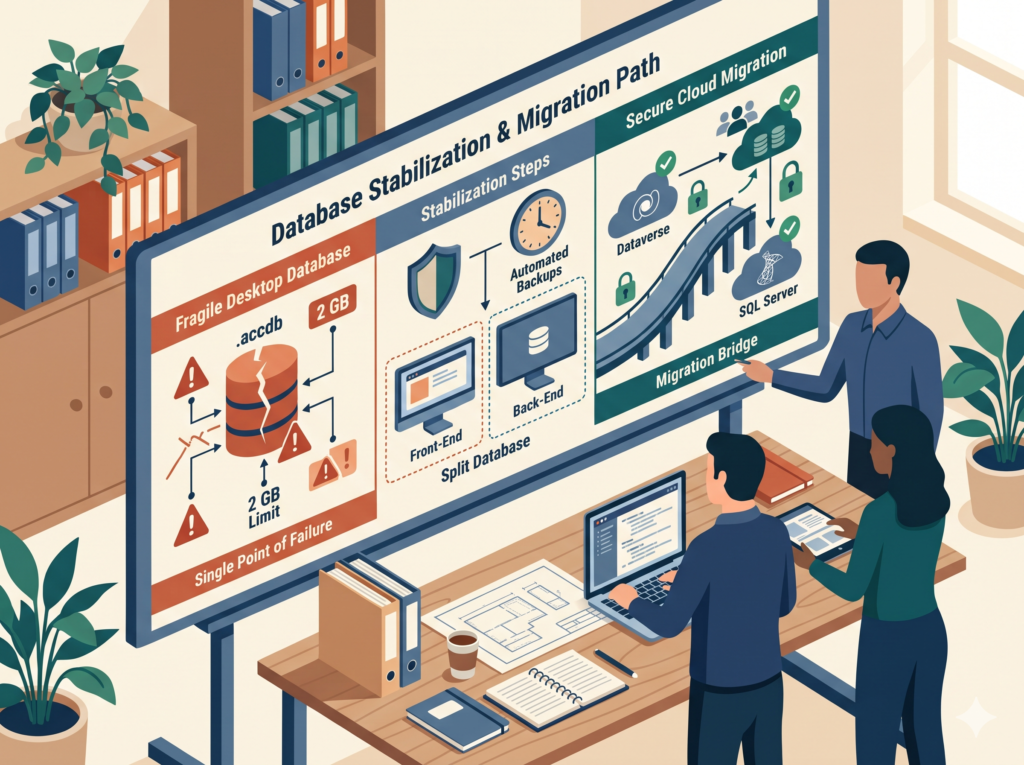
- Split the database. Put the tables (back end) in one file on the server and the forms, queries and reports (front end) in another. This is the single most important step.
- Give every user their own copy of the front end on their own computer. Never let several people open the same front-end file.
- Keep the back end on a reliable, wired file server. Not a Wi-Fi laptop, and not a drive that drops connections.
- Never store the back end in OneDrive, Dropbox or a synced SharePoint folder. Sync tools and Access file locking don’t mix, and this is a common modern cause of corruption.
- Avoid VPN and Wi-Fi for everyday use. For remote users, use remote desktop to a machine on the office network, or move the data to SQL Server.
- Compact regularly. Monthly at minimum, weekly for busy databases, with everyone out of the file. See Microsoft’s compact and repair guide. Turn on Compact on Close for front ends only, not a shared back end.
- Back up nightly, automatically. Store copies somewhere separate from the original (not the same drive or machine), keep several days of history, and test a restore now and then.
- Keep Access updated on a supported version: Access for Microsoft 365 or Access 2024.
- Protect the server from power loss with a battery backup, and train users to close Access properly instead of shutting down with it open.
- Watch the file size and user count. If you’re near 2 GB or regularly above 10 to 15 simultaneous users, move the tables to SQL Server while keeping your Access screens.
Not sure your setup follows these? Our Access maintenance and support service includes a health check that covers all ten.
If Corruption Does Happen: Recovery at a Glance
Work through these in order, always on a copy of the file:
- Compact and Repair: File > Info > Compact & Repair Database (or Database Tools > Compact and Repair Database). Fixes minor damage.
- Open exclusively: File > Open, select the file, then choose the arrow next to the Open button > Open Exclusive. This keeps others out during repair. Separately, holding Shift while opening bypasses startup forms and macros, which helps if startup code is crashing.
- Import into a new database: create a blank database and import tables, then queries, forms and reports, one at a time. Objects that fail to import are the damaged ones.
- Restore from backup: often the fastest, most complete option, if your backup is recent.
- Third-party tools: products like DataNumen Access Repair and AccessFIX can sometimes recover data Access can’t open. Try their free previews first.
- A specialist: an experienced Access developer can often recover more than generic recovery services.
Recovery is usually partial: data entered since the last clean backup is often lost. That’s why prevention matters. For full step-by-step instructions, see How to Repair a Corrupted Access Database, or get help from our Access database repair service.
The Deeper Problem Corruption Reveals
If your database keeps corrupting, the corruption isn’t really the problem; it’s a symptom.
The real issue is a critical business process running on a desktop database tool built for smaller teams and lighter loads. When a business uses it as its operational backbone, with many users, mission-critical data and no redundancy, it’s asking Access to do something it wasn’t built for.
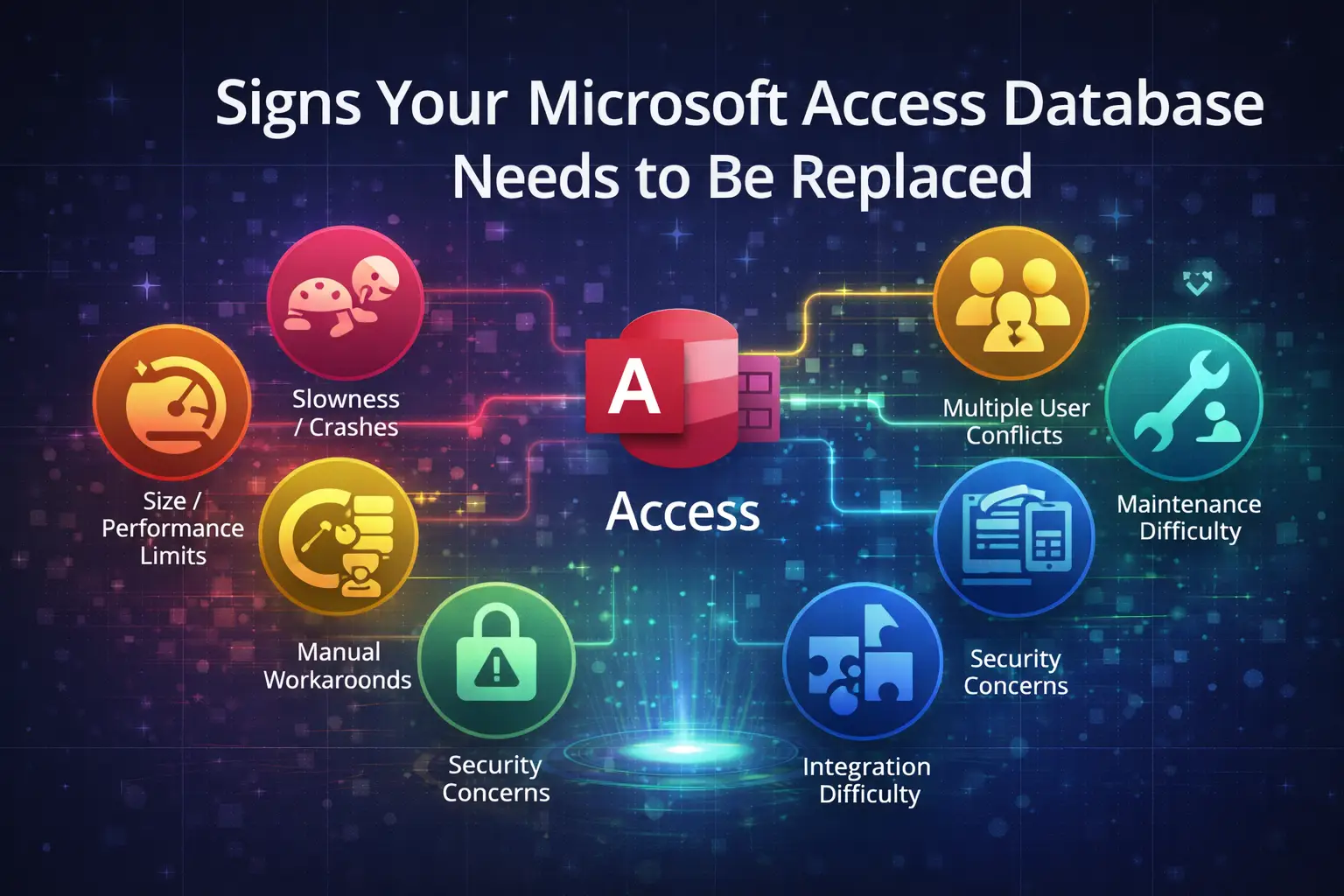
Corruption is one sign of that mismatch. Others: the single file as a single point of failure, dependence on the one person who understands it, no audit trail, no role-based security and no mobile access. See 5 Microsoft Access Limitations.
Recovering and going back to the same setup is like patching a tire that’s been driven flat for ten miles. You may get more time out of it, but the next failure is a matter of when, not if.
The Long-Term Fix
For databases that keep corrupting, or that show the warning signs, the conversation shouldn’t stop at recovery.
The process needs a platform designed for how you actually use it: many users, cloud storage, real security, automatic backups, and no single file on a shared drive. For most small businesses on Microsoft 365, that means Power Apps as the front end with Dataverse or SQL Server behind it. There’s no file to corrupt, because the data lives in a database Microsoft runs with built-in redundancy.
Migration starts with recovering and cleaning your data, mapping it to the new structure, building the replacement and retiring Access. A simple database typically takes 4 to 8 weeks; a moderately complex one, 2 to 4 months. See Converting an Old Access Database to a Modern Platform.
What to Do Right Now
- If it corrupted today: follow the recovery steps above, in order, on a copy.
- If it’s showing warning signs: back it up today to a separate location, write down your recovery plan, and start working through the prevention checklist.
- If it’s fine but your setup is risky (many users, network drive, old version, no backup routine): don’t wait for symptoms. Businesses that act before something breaks pay a fraction of what emergency recovery costs.
Worried your Access database is next? Book a free diagnostic and we’ll check your setup against these safeguards.
Frequently Asked Questions
Why does my Access database keep getting corrupted?
The most common causes are network drops while saving, the back end stored in OneDrive or a sync folder, users on Wi-Fi or VPN, too many people in one shared file, and a database that isn’t split or compacted.
How do I prevent Access database corruption?
Split the database, give each user their own front end, keep the back end on a wired file server, avoid cloud sync folders, compact regularly, back up nightly and stay on a supported version of Access.
How many users can safely use an Access database?
Microsoft’s specification allows up to 255, but in practice a shared Access file gets fragile beyond about 10 to 15 simultaneous users. Larger teams should move the data to SQL Server or Dataverse.
Does compacting an Access database prevent corruption?
It helps. Regular compacting rebuilds the file’s structure and reclaims space, reducing the risk of corruption. It works best alongside a split database, good network setup and nightly backups.
Anthony Passeri, MBA, is the founder of Access Evolved and a certified Microsoft Access Expert with 21+ years of Access and relational database experience. He helps businesses keep critical Access databases running and modernize them to Power Platform or SQL Server. More about Anthony
Talk to an Access Expert
Not sure what this means for your database? Book a free diagnostic call. No sales pitch, just a straight conversation about what makes sense for your situation.
Phone: 623-267-5720
Email: info@accessevolved.com
Access Evolved | 19580 W Indian School Rd, Ste 105 #815, Buckeye, AZ 85396
Sources
- Microsoft Support: Access specifications (2 GB limit, 255 concurrent users)
- Microsoft Support: Compact and repair a database
- CodeTwo: Office 2016 and 2019 end of support
- Licensing School: Office LTSC 2021 end of support