
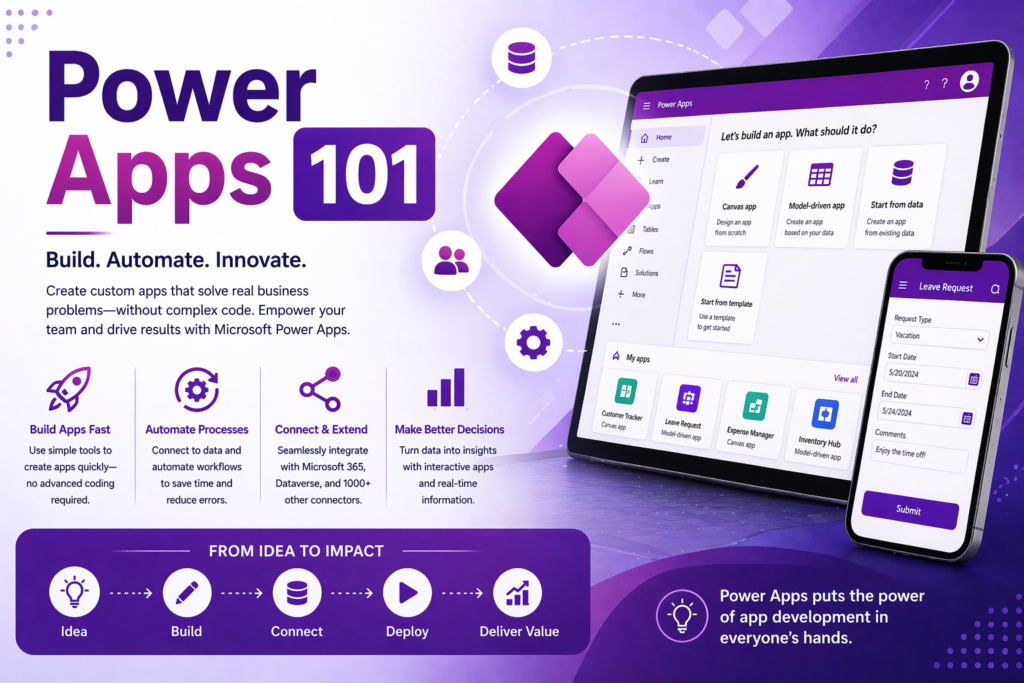
If you’ve just heard about Power Apps for the first time — or you’ve heard the name a dozen times and still aren’t sure what it actually means in practice — this is the post to read first. Consider it your starting point. We’ll cover what Power Apps is, how it works, what the key concepts are, and what you need to know before you build anything or hire anyone to build for you.
Start Here: What Power Apps Is in Plain English
Power Apps is a Microsoft product that lets you build custom applications for your business. Those applications can run on a phone, a tablet, or a desktop browser. They can connect to your data, enforce business rules, support multiple users with different permission levels, and automate actions when things happen.
The reason Power Apps exists is that most businesses have processes that need more structure than a spreadsheet can provide but don’t justify the cost or complexity of enterprise software. Power Apps fills that gap. It is faster to build than traditional software, significantly cheaper than off-the-shelf enterprise tools, and flexible enough to fit your actual process rather than forcing you to adapt your process to fit a generic product.
It is part of Microsoft’s Power Platform, which also includes Power Automate for workflow automation, Power BI for reporting and dashboards, and Dataverse as the underlying cloud database. These tools are designed to work together, and the most powerful business solutions on the platform combine all of them.
The Two Types of Power Apps
There are two fundamentally different types of applications you can build in Power Apps, and understanding the difference matters before you start.
Canvas Apps
Canvas apps give you a blank canvas — literally — where you design every screen from scratch. You place controls where you want them, connect them to data sources, write formulas to define their behavior, and build the user experience exactly the way you want it. Canvas apps are highly flexible and are the right choice when the user interface matters — when you need a specific layout, a mobile-optimized experience, or a design that matches how your team actually works.
Think of canvas apps as the Power Apps equivalent of building something custom. You have full control over how it looks and behaves. That flexibility comes with a slightly higher build complexity — canvas apps require more design decisions upfront — but the result is an application that fits your process precisely.
Model-Driven Apps
Model-driven apps work differently. Instead of starting with the interface, you start with the data model — the tables, relationships, and business rules in Dataverse — and the application generates its interface automatically based on that structure. Model-driven apps are faster to build for complex data-heavy scenarios and are the right choice when you have multiple related tables, complex forms, and users who need to navigate between records efficiently.
Think of model-driven apps as the Power Apps equivalent of a structured database application. The interface is less customizable than a canvas app but the data handling is significantly more powerful out of the box.
For most small business use cases — field reporting, intake forms, approval tracking, operational dashboards — canvas apps are the starting point. Model-driven apps become relevant as data complexity increases.
The Key Concepts You Need to Understand
Data Sources
Every Power Apps application connects to a data source — the place where your records live. The most common data sources for small business Power Apps are SharePoint Lists, Dataverse tables, SQL Server databases, and Excel files stored in OneDrive. The data source you choose has a significant impact on what your application can do, how it performs, and what it costs.
SharePoint Lists are free with Microsoft 365 and work well for simple applications with modest data volumes. Dataverse is a proper cloud database that handles relational data, role-based security, and large datasets — it requires a Power Apps license but is the right foundation for anything serious. SQL Server connects to existing databases and is the right choice when you already have data in SQL that you want to surface in a mobile or browser application.
Delegation
Delegation is one of the most important concepts in Power Apps and one of the most commonly misunderstood. When your app applies a filter, sort, or search to a data source, Power Apps tries to push that operation to the data source itself — letting the database do the work and only returning the records you need. This is called delegation, and it is how Power Apps handles large datasets efficiently.
The problem is that not all operations can be delegated to all data sources. SharePoint, in particular, has significant delegation limitations — many filter and sort operations cannot be pushed to SharePoint and are instead processed locally, which means Power Apps only looks at the first 500 to 2,000 records in your list regardless of how many actually exist. If your application needs to search or filter a dataset larger than that, SharePoint delegation limits will cause incorrect results and you need Dataverse or SQL Server instead.
Understanding delegation before you choose a data source saves you from building something that appears to work in testing and fails in production when your data grows.
Formulas
Power Apps uses a formula language similar to Excel. If you are comfortable with Excel formulas, Power Apps formulas will feel familiar. They use the same logical structure — IF, AND, OR, FILTER, LOOKUP — applied to app controls and data instead of spreadsheet cells.
Formulas in Power Apps control everything: what data a gallery displays, whether a button is visible, what happens when a form is submitted, how a label formats a date or a number. The more comfortable you are with the formula language, the more you can make an application do without needing a developer for every change.
Connectors
Connectors are the bridges between Power Apps and external data sources and services. Microsoft provides over 400 connectors out of the box — for SharePoint, Dataverse, SQL Server, Outlook, Teams, Excel, Salesforce, QuickBooks, and hundreds of other systems. Standard connectors are included with most Microsoft 365 licenses. Premium connectors — including Dataverse and SQL Server — require a Power Apps license.
If you need to connect to a system that does not have a pre-built connector, Power Apps supports custom connectors built on REST APIs, which covers virtually any modern web service.
Environments
Power Apps applications live inside environments — containers that separate different deployments of the platform. Most small businesses start with a single default environment, but as you build more applications the right practice is to maintain separate development, testing, and production environments so that changes can be tested before they affect live users.
Environments also control which Dataverse database your applications connect to, which security roles are in place, and which solutions are deployed. Understanding environments becomes more important as your Power Platform footprint grows.
What Power Automate Has to Do With It
Power Apps and Power Automate are designed to work together, and most real-world business applications use both. Power Apps handles the user interface — the screens, forms, and interactions. Power Automate handles the background logic — what happens after a form is submitted, how data flows between systems, who gets notified when a record changes.
A simple example: a user submits a purchase request through a Power Apps canvas app. That submission triggers a Power Automate flow that routes the request to the appropriate approver, sends them a notification in Teams, captures their approval or rejection, updates the record in Dataverse, and notifies the requestor of the outcome. The user never sees the automation — they just see that the process works.
Building Power Apps without Power Automate is like building a form without a submit button. You can capture data, but you cannot do anything meaningful with it automatically.
What Dataverse Has to Do With It
Dataverse is the cloud database at the core of the Power Platform. It is where your application data lives when you need more than SharePoint Lists can provide — relational tables, row-level security, audit history, complex data types, and the ability to scale to large datasets without hitting delegation limits.
For simple internal tools with modest data volumes, SharePoint Lists work fine and cost nothing beyond your M365 subscription. For anything that is going to run a real business process, handle sensitive data, or grow over time, Dataverse is the right foundation. It requires a Power Apps per-user or per-app license, but the capabilities it unlocks make it worth the cost for serious applications.
The Licensing Basics
Power Apps licensing is one of the most frequently misunderstood parts of the platform. Here is the simplified version:
Microsoft 365 business subscriptions include limited Power Apps capabilities — enough to build simple applications on SharePoint Lists at no additional cost. This covers a surprising number of use cases for small businesses just getting started.
Power Apps per-app licensing costs around $5 per user per month and gives each user access to one specific application with Dataverse included. This is the right choice when you have one application and a defined user group.
Power Apps per-user licensing costs around $20 per user per month and gives each user access to unlimited Power Apps applications with Dataverse included. This is the right choice when you are building multiple applications or when users need access to several apps.
These prices are Microsoft’s list prices and are subject to change. Enterprise agreements and nonprofit pricing can look different. The right licensing structure for your organization depends on how many applications you are building and how many users need access.
How Long Does It Take to Build a Power App?
This depends almost entirely on complexity, but here are realistic ranges based on real projects:
A simple single-screen form connected to a SharePoint List with a basic Power Automate notification can be built in a day or two by someone who knows the platform. A straightforward multi-screen canvas app with a Dataverse backend, several user roles, and a handful of automation flows typically takes two to four weeks. A full-featured operational platform with complex data models, custom connectors, advanced security, and multiple integrated flows runs six to twelve weeks.
The most common mistake is underestimating scope. What sounds simple in a conversation — “I just need a form that does X” — often involves more data relationships, more user roles, and more edge cases than the initial description suggests. A proper scoping conversation before any build begins is worth the time.
Should You Build It Yourself or Hire Someone?
Power Apps is genuinely accessible to non-developers. Microsoft has invested heavily in making the platform learnable, and there is a large library of documentation, tutorials, and community resources. If you have time to learn, a relatively simple application, and a data source that does not require Dataverse, building it yourself is a legitimate path.
The case for hiring a consultant gets stronger when any of the following are true: your data model is complex, you need Dataverse configured correctly from the start, you have integration requirements with external systems, you are replacing a mission-critical process and cannot afford a failed implementation, or your time is worth more than the learning curve.
A good Power Apps consultant does not just build the application — they ask the right questions about your data, your users, and your process before a single screen is designed. The difference between an application that works and one that works well is almost always in the planning, not the build.
The Bottom Line
Power Apps is one of the most underutilized tools in the Microsoft 365 stack. Most small businesses are paying for it as part of their subscription and have no idea it exists. The businesses that discover it and use it well consistently report the same outcome: processes that used to run on spreadsheets, paper, and tribal knowledge now run on applications that anyone can use, anyone can see, and nobody has to babysit.
Getting started does not require a massive commitment. A scoping conversation, a clear problem to solve, and the right partner to build it is enough to go from spreadsheet chaos to a working application in a matter of weeks.
Ready to talk through your options? Reach out to Anthony at AccessEvolved — email anthony@accessevolved.com or call 212-951-1010. No sales pitch, just a straight conversation about what makes sense for your situation.