The most expensive mistakes in an Access migration happen before anyone builds anything. Taking the time to document a legacy Access database up front prevents teams from discovering missing business rules halfway through a build and watching their project stall.
This checklist covers what to capture first. You can do much of it yourself, or hand it to a consultant as a standalone legacy system documentation engagement. Either way, the result is a blueprint you own. If you want the bigger picture first, start with converting an old Access database to a modern platform.
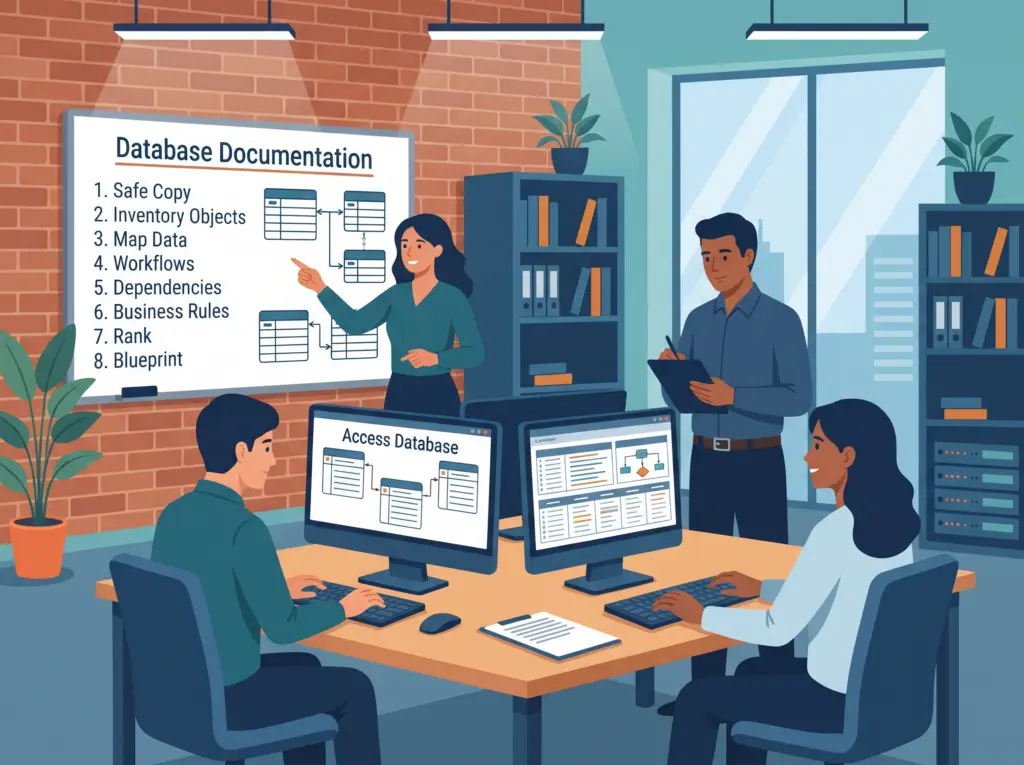
1. Make a safe copy before you document a legacy Access database
Before touching anything, copy the front-end and back-end files and store them somewhere separate. Work only on the copy. If the database is split, note where each half lives and which users have which version. If the file is already misbehaving, see what to do when your Access database is corrupted before you proceed.
2. Inventory every object in your legacy Access database
List everything in the database:
- Tables: names, key fields, row counts, and which ones are linked from elsewhere
- Relationships: how tables connect, and where relationships are missing (our post on designing tables and relationships explains what good looks like)
- Queries: especially action queries (update, delete, append) that change data
- Forms and reports: who uses each, and how often
- Macros and VBA modules: what each one does, in plain English
Access’s built-in Database Documenter can generate much of this list. It tells you what exists, but not why, which is where the interviews come in.
3. Map the data
For each important table, record what the fields mean, which are required, and what values are allowed. Look for duplicates, blank fields that should be filled, and inconsistent values (for example, “AZ,” “Az,” and “Arizona” in the same column). Dirty data is much cheaper to find now than after migration, and it shapes your choice of target. Compare Dataverse with SharePoint in SharePoint Lists or Dataverse? once you know what you’re moving.
4. Trace the workflows
Pick the five or six things the business actually does with the database, such as entering an order, running month-end, or sending a renewal notice. Walk through each one step by step with the person who does it. Note every manual step outside the database: the Excel export, the email, the printed report. Many of these become Power Automate flows after migration.
5. Find the hidden dependencies
Check for:
- Linked Excel or text files and the paths they point to
- Connections to other systems (accounting software, ODBC sources, SQL Server)
- Scheduled tasks or macros that run automatically
- Email, printing, or file-export routines
- User-specific settings or hard-coded file paths
6. Capture the business rules
Interview users, not just the author. Ask: “What does the database do that surprises new employees?” and “What do you do when it gives you a wrong answer?” The answers reveal rules that exist only in habit. If the author is gone, read what happens when the person who built your Access database leaves.
7. Rank what matters
Not everything needs to migrate. Sort objects into must keep, should improve, and retire. Many databases carry years of unused forms and queries, and removing them shrinks the project and its cost.
8. Write it down in one place to document a legacy Access database
Compile the findings into a single document: the object inventory, data dictionary, workflow maps, dependencies, and the ranked list. This is your migration blueprint, and it keeps its value whichever platform or vendor you choose, whether that’s Power Apps, SQL Server, or staying in Access.
What you get when you document a legacy Access database first
A reliable scope and budget, no lost business rules, a cleaner target design, and a team that has been heard before anything changes. In our modernization case study, this documentation phase surfaced rules that existed only in people’s heads, and it protects you if your key person leaves mid-project.
Want a blueprint without committing to a full migration? Book a free diagnostic and ask about our legacy system documentation service, or learn how we migrate Access to the Power Platform.
Related reading
- How to Know When It’s Time to Migrate Off Microsoft Access
- How Much Does It Cost to Migrate Microsoft Access to Power Apps?
- Can You Build Access on Dataverse?