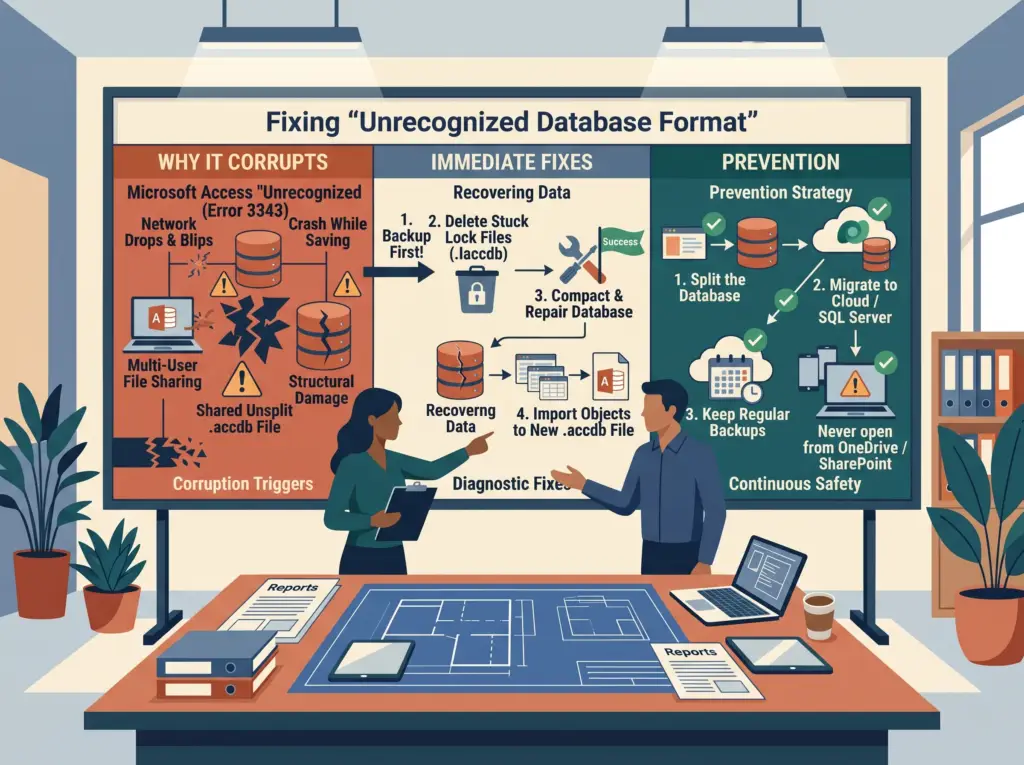
Short answer: When you encounter an unrecognized database format in Access error (often Error 3343), Access can no longer read the internal structure of your .accdb or .mdb file. Usually, this error stems from file corruption after a network drop, a crash during a save, or multiple users opening an unsplit database. First, always make a safe backup copy before touching anything. Next, check the file size, delete stuck lock files, and run Compact and Repair on your copy. Finally, if standard repairs fail, import your undamaged objects into a brand-new database.
Few database errors trigger as much panic as launching Microsoft Access and seeing a blunt "Unrecognized database format" alert. Suddenly, your primary operational file refuses to open, and your entire team grinds to a halt.
Fortunately, your underlying business data often remains completely intact. However, rushing into repairs without a safe plan can make the damage much worse. Therefore, understanding what causes this error, how to recover your file, and how to prevent future crashes protects your business operations.
Why Does the “Unrecognized Database Format” Error Happen?
To understand why an unrecognized database format in Access message appears, look at how the .accdb file engine works. Access operates as a file-share database. Consequently, it constantly reads and writes directly to a single shared file over your PC memory or local network.
Whenever an interruption breaks that data flow, the internal file headers scramble. Specifically, six common issues trigger this exact error:
- Network drops and Wi-Fi blips: If a user is actively writing a record over a spotty network and their connection drops for even a second, Access leaves the file half-written, corrupting the file header.
- Sudden crashes and power cuts: A computer shutting down unexpectedly, a force-closed task, or a power surge while the file is open breaks Access’s write processes.
- Using unsplit databases: Allowing multiple people to open and edit the exact same
.accdbfile at once—rather than splitting it into a separate front-end and back-end—frequently leads to corrupted file blocks. - Syncing through OneDrive, Dropbox, or SharePoint: Consumer cloud sync agents frequently lock databases or merge mismatched copies, scrambling the database.
- Leftover lock files (
.laccdbor.ldb): If Access closes abruptly, a “stuck” locking file can make the database appear unreadable or permanently busy to the next user. - Opening files in a version mismatch: Trying to open a modern
.accdbfile in a very old version of Access (like Access 2003) which can only read older.mdbfiles.
To examine how structural file damage happens and how to safe-guard your file, read What Happens When Your Microsoft Access Database Corrupts.
Quick Diagnostic: Before You Attempt Any Repairs
Naturally, you want to fix the problem immediately. However, pause for sixty seconds and check three basic details first:
- Verify the file location: First, confirm you are opening the file from a local drive or proper network share rather than an email attachment or temporary folder.
- Check the file extension: Next, ensure the filename ends in
.accdbor.mdbrather than an accidental rename like.accdt. - Inspect the file size: Then, right-click the file and open Properties. If the size reads 0 KB or looks drastically smaller than normal, skip repair tools and restore your latest clean backup instead.
4 Steps to Safely Recover Your Database
If your file size looks normal, follow this safe four-step sequence to fix the unrecognized database format in Access error without risking permanent data loss:
Step 1: Make a Backup Copy First
Never run repair tools on your only copy of a damaged file. Instead, duplicate the problem .accdb file and paste it into a separate recovery folder. Always work strictly on that copy so your original file stays untouched for specialist recovery if needed.
Step 2: Delete Leftover Lock Files
First, verify that every employee on your team has closed Microsoft Access completely. Next, open the folder holding your database and look for a matching filename ending in .laccdb (or .ldb for older formats). Because nobody has the database open, that lock file should not exist. Delete the stuck lock file from your recovery folder, then test opening your database copy.
Step 3: Run the Built-In Compact and Repair Utility
If deleting the lock file does not clear the error, use Microsoft’s built-in repair tool. First, open a blank instance of Microsoft Access on your desktop.
Before opening any database, click Database Tools > Compact and Repair Database. Next, browse to your backup copy, select Compact, and let Access finish scanning. Frequently, this utility rebuilds broken index pointers and restores normal access within seconds.
Step 4: Import Your Objects Into a Brand-New Database
Sometimes, the original file header suffers too much damage for Compact and Repair to fix. In that situation, use this reliable workaround instead:
- First, create a brand-new, empty Access database file.
- Next, open the External Data tab on the top ribbon.
- Then, select New Data Source > From Database > Access.
- Browse to your damaged backup copy and select Import tables, queries, forms, reports, macros, and modules.
- Finally, import your tables first, and then bring over your queries, forms, reports, and code modules in smaller batches.
Often, this clean import rescues almost all your tables and screens even when the original system header fails completely.
| Step | What It Involves | Best For | Risk Level |
| 1. Create a Copy | Copying .accdb or .mdb files to a backup folder | Ensuring original data remains safe before any attempts | No risk |
| 2. Delete Lock Files | Removing stuck .laccdb or .ldb files | Clearance for stuck data without internal alteration | Very Low |
| 3. Compact and Repair | Running built-in Access database utilities | Automatically resolving index errors and fragmentation | Low |
| 4. Import to New DB | Migrating objects into a fresh .accdb database | Retrieving viable tables/forms when system file headers fail | Moderate |
How to Prevent the “Unrecognized Database Format” Error From Returning
Saving your database once is only half the battle. To stop this stressful issue from happening again, you must fix the bad habits that cause file corruption in the first place:
- Split your database: Make sure your database is split, with the data tables in a back-end file on a server and a copy of the forms and queries (front-end) on each user’s computer—the single best way to prevent an unrecognized database format in Access outage.
- Address slow or unreliable connections: Do not run Access over Wi-Fi, spotty VPNs, or slow network environments. Check our guide on why an Access database slow over VPN issues happen for safe remote solutions.
- Keep your database out of sync folders: Make sure your active database files are never placed on OneDrive, SharePoint, or Dropbox. This is a frequent cause of corruption.
- Automate your backup schedule: Set up automated, nightly backups of your back-end file so that even if corruption occurs, you only ever lose a few hours of work, not years of business history.
- Upgrade to SQL Server or Dataverse: Consider migrating your database’s back-end tables to SQL Server or Microsoft Dataverse so they are stored safely in a proper, crash-resistant server engine.
Not sure if your .accdb file can be recovered—or ready to migrate to a crash-resistant server to eliminate error screens for good? Book a free diagnostic call, and we’ll safely analyze your files and help you protect your data from future outages.
Frequently Asked Questions
What does unrecognized database format in Access mean?
It means Access cannot parse or interpret the binary file structure of your .accdb or .mdb file. It most commonly indicates that the database file is corrupted, usually after a network drop, unexpected computer crash, or sync conflict.
Why does a database get corrupted during a save?
Microsoft Access requires an active, uninterrupted network connection while writing data. If a remote connection drops, Wi-Fi blips, or the user’s PC crashes during this millisecond window, Access is unable to finish writing its database indexes, corrupting the file’s system header.
Can I retrieve data from a corrupted database?
Often, yes. By duplicating the damaged file, removing stuck lock files, running Microsoft’s internal Compact and Repair tool, or importing objects into a new, blank database, you can usually recover most or all of your records.
How do I stop Access databases from corrupting over and over?
The most effective way is to split the database so that each user has their own front-end file on their local PC while the data is stored on a server. To go further, make sure to keep files out of OneDrive or Dropbox sync folders, avoid network access over Wi-Fi or VPN, and migrate back-end tables to a SQL Server or Dataverse engine.
Anthony Passeri, MBA, founded Access Evolved and serves as a certified Microsoft Access Expert with 21+ years of Access and relational database experience. Today, he helps businesses keep critical Access databases running smoothly and modernize them to Power Platform or SQL Server. More about Anthony
Talk to an Access Expert
Not sure what this means for your database? Book a free diagnostic call. You’ll get no sales pitch—just a straight conversation about what makes sense for your situation.
- Book a Free Diagnostic
- Phone: 623-267-5720
- Email: info@accessevolved.com
- Address: Access Evolved | 19580 W Indian School Rd, Ste 105 #815, Buckeye, AZ 85396
Sources